Every warehouse needs a clear system for moving stock. That is why Inventory Routes and Rules exist in Aureus ERP.
Together, they guide products from one location to another. Without them, stock movement becomes messy and unpredictable.
In this blog, we will explain Inventory Routes and Rules with real examples. We will also show you how to create them step by step.
What Are Routes in Aureus ERP?
First, let’s understand routes. A route defines the path a product takes through your warehouse. Basically, it decides where stock goes next.
For example, imagine a clothing brand receiving raw fabric. The fabric first moves to a quality check zone. Then, it moves to the stitching unit. After that, finished shirts move to packaging. Finally, they move to the shipping dock.
This entire journey is one route. So, Routes make this flow automatic and consistent every time.
Routes support logistics management because they map the full journey. Also, they support warehouse optimization by removing guesswork from stock handling.
What Are Rules in Aureus ERP?
Now, let’s talk about rules. A rule is a single instruction inside a route. Essentially, it tells the system how one movement should happen.
For instance, take that same shirt example. One rule says: “move stock from quality check to stitching.” Another rule says: “move stock from stitching to packaging.” Each rule handles one step only.
Therefore, a route is made of multiple rules working together. Without rules, a route has no real instructions to follow.
Rules also support inventory automation because they trigger movements automatically. As a result, staff spend less time tracking manual transfers.
Difference Between Routes and Rules
So, what is the real difference? A route is the overall journey. A rule is one step within that journey.
In other words, routes represent the “big picture.” Meanwhile, rules represent the “small actions.” Consequently, Routes and Rules always work as a pair.
Think of it this way: a route is like a delivery map. Rules are like the individual turns on that map.
Enable Multi Step Routes
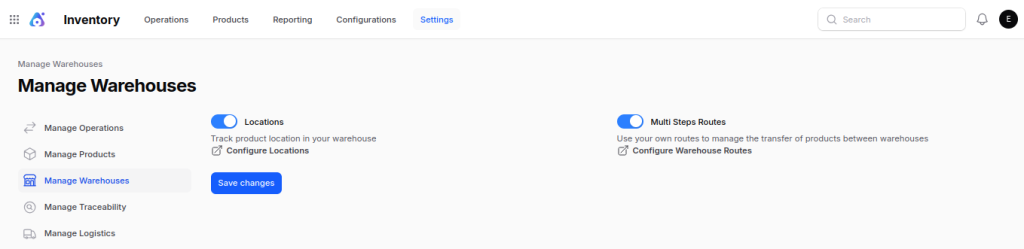
Before creating Inventory Routes and Rules, enable multi step routes.
Go to Settings → Manage Warehouse. Then, turn on the multi step routes option.

How to Create New Routes and Rules
Now, let’s create Inventory Routes and Rules inside Aureus ERP. Follow these steps carefully.
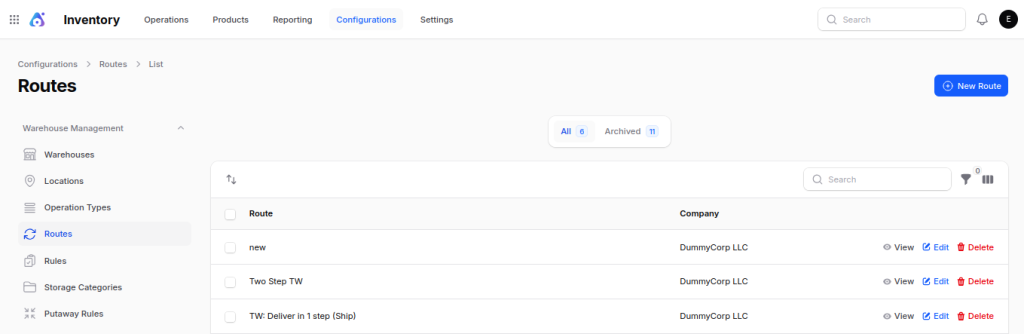
Step 1: Navigate to Routes
First, go to Inventory → Configuration → Routes. Then, click the New Route button.

Step 2: Fill in the Required Details
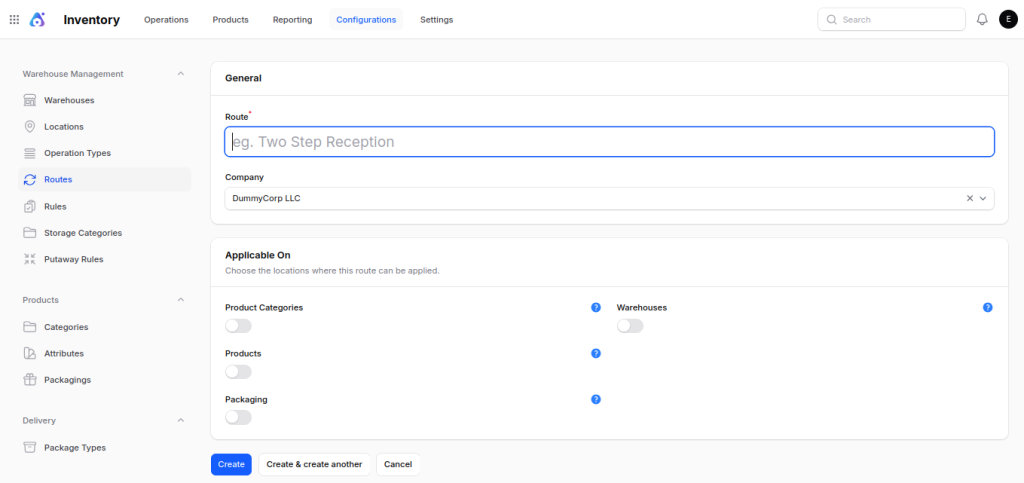
Next, complete the general section:
- Route: give this route a clear, descriptive name.
- Company: select which company this route belongs to.
Under Applicable On, enable the toggles for where this route applies:
- Product Categories: if enabled, this route becomes selectable on product categories.
- Products: if enabled, this route becomes selectable on individual products.
- Packaging: if enabled, this route becomes selectable during Packaging Creation.
- Warehouses: if assigned, this becomes the default route for products moving through that warehouse.

Step 3: Create the Route
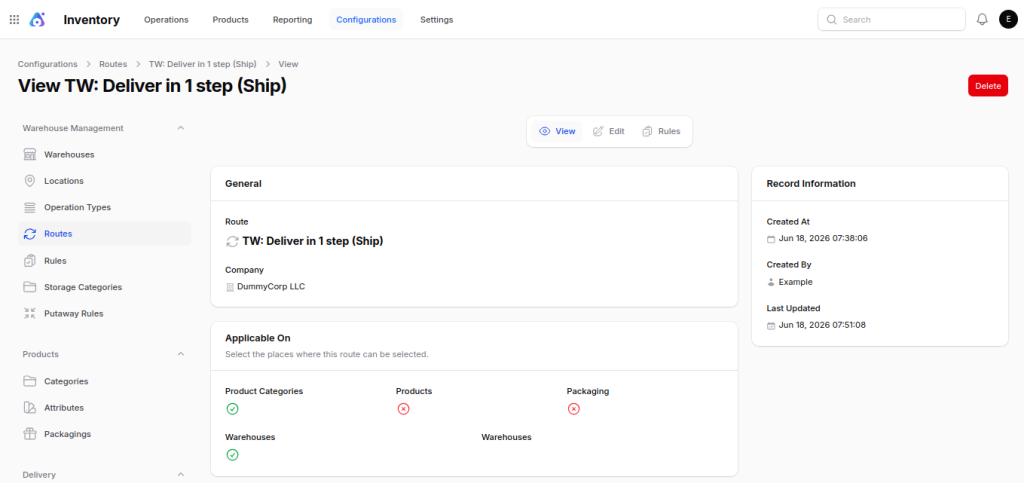
After that, click Create. This redirects you to the route’s view page.
Step 4: Edit the Route
Now, click the Edit button.
Step 5: Add a Rule
Then, go to the Rule section. Click Add Rule to begin.
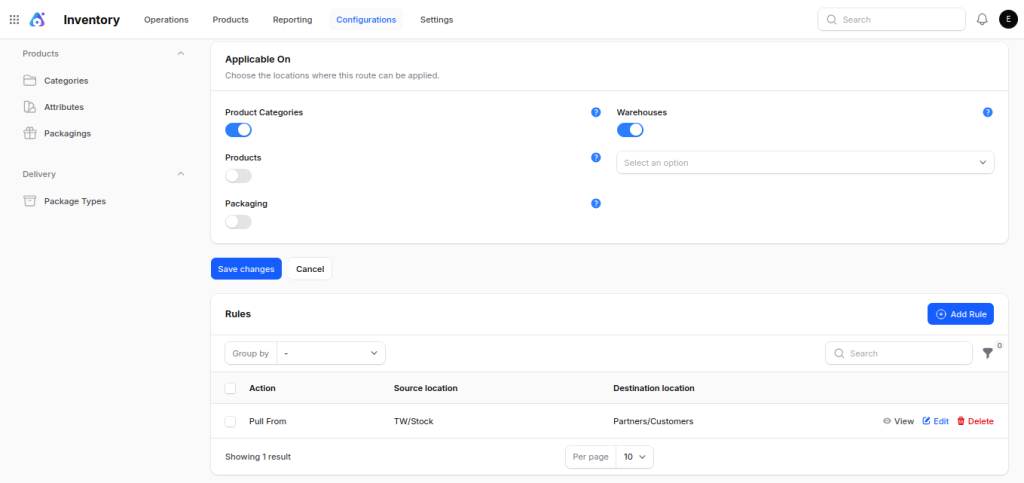
Note: Alternatively, create rules directly from the Rules tab under configuration.
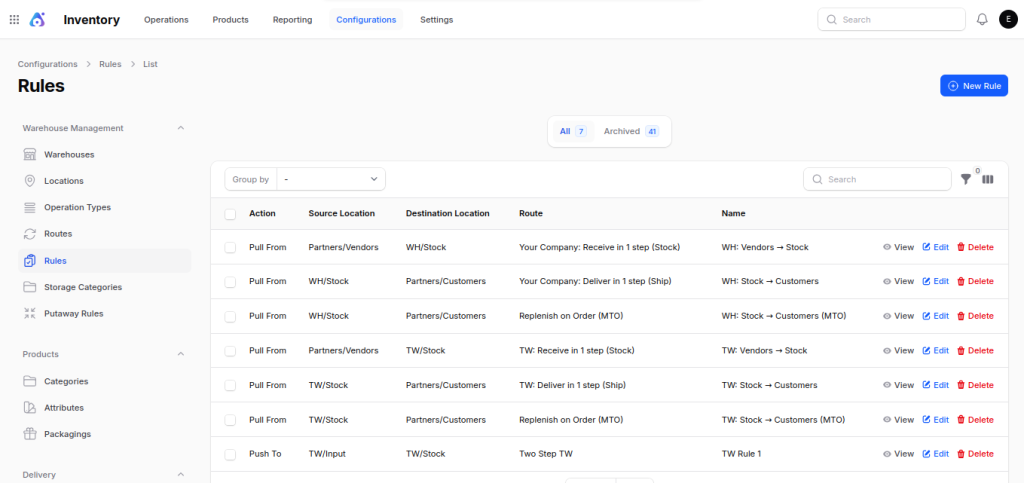
Step 6: Fill in Rule Details
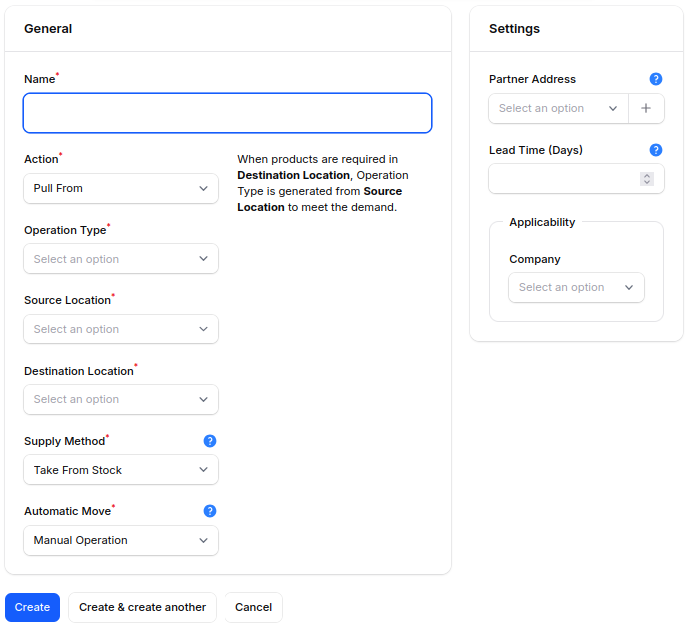
Now, complete the general fields:
Name: give the rule a short, meaningful title.
Action: choose how stock should move:
- Push To: automatically sends stock forward once it arrives.
- Pull From: requests stock from an earlier location on demand.
- Pull & Push: combines both directions for continuous stock movement.
- Buy: triggers a purchase order when stock runs low.
- Manufacturing: triggers a production order to replenish stock.
Operation Type: Operation Type defines the kind of transfer this rule performs.
Source Location: sets where stock moves from.
Destination Location: sets where stock moves to.
Supply Method: Choose how the system finds stock:
- Take From Stock: uses whatever inventory is currently available.
- Trigger Another Rule: passes the request to a linked rule instead.
- Take From Stock, If Unavailable, Trigger Another Rule: checks stock first, then falls back to another rule.
Automatic Move: Choose how the transfer gets processed:
- Manual Operation: requires a staff member to confirm the move.
- Automatic, No Step Added: moves stock instantly without manual input.
Additionally, fill in the settings section:
Partner Address: Address where goods should be delivered(optional).
Lead Time (Days): sets the expected number of days this movement takes.
Applicability:
- Company: restricts this rule to a specific company’s operations.

Step 7: Save the Rule
Finally, click Create to save your rule.
How to Apply Your Route
After creating Inventory Routes and Rules, you must activate them properly. Otherwise, they won’t affect stock movement.
Product
Assign a route to a product when only that specific product should follow a particular inventory workflow.
Steps:
- Navigate to Inventory → Products.
- Open the required product or Create a New Product.
- Click Edit.
- Go to the Inventory → Operations selection.
- Select the required route.
- Click Save.

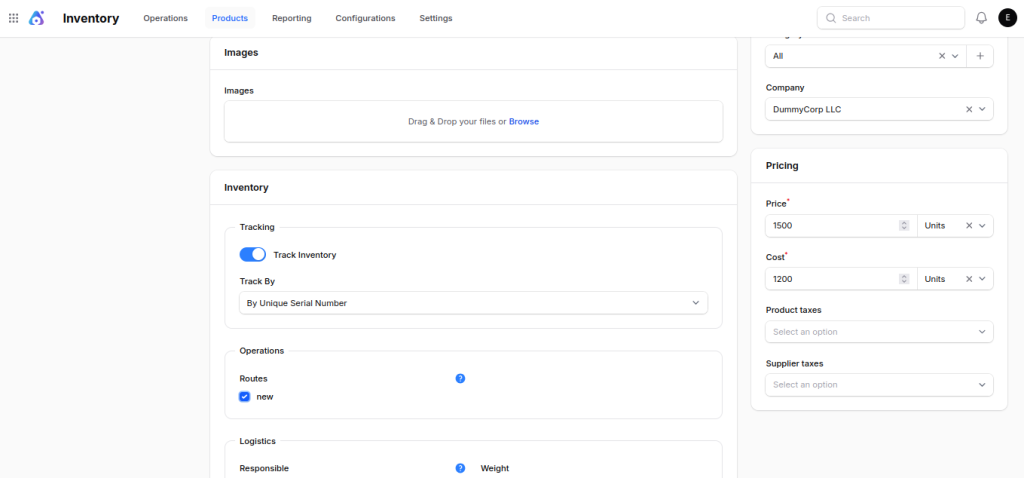
After saving, only that product follows the selected route whenever inventory operations occur.
Product Category
Assign a route to a Product Category when multiple products require the same inventory process.
Steps:
- Navigate to Inventory → Configuration → Product Categories.
- Open the required category or create a new one.
- Click Edit.
- Select the required route.
- Click Save.
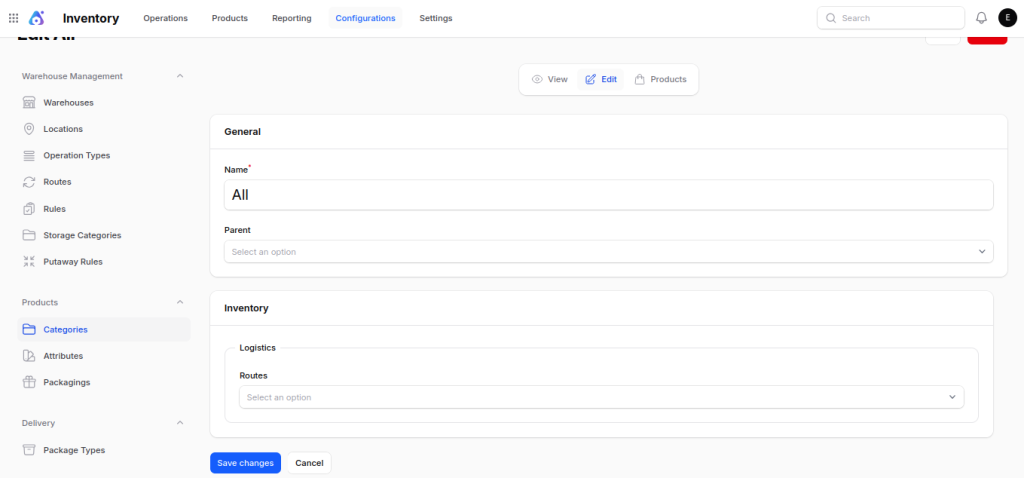
Every product in that category can now use the same route. This approach reduces repetitive configuration and improves inventory automation.
Packaging
Assign a route to packaging when different packaging requires different handling or shipping processes.
Steps:
- Navigate to the packaging creation or edit page.
- Select the required packaging or create a new one.
- Choose the appropriate route.
- Save the packaging.

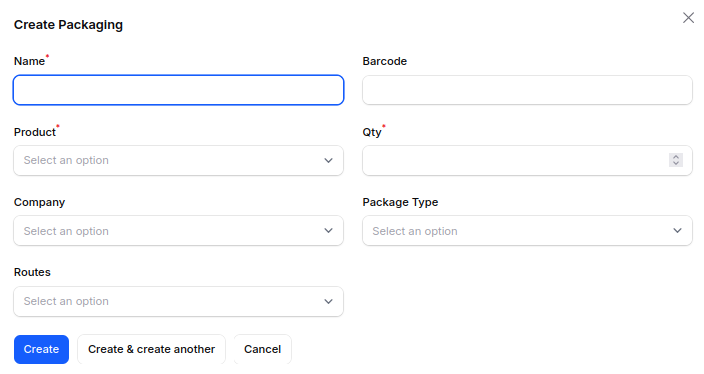
Products packed using that packaging will follow the assigned route during inventory operations.
Final Words
In short, Inventory Routes and Rules bring structure to supply chain management. Routes map the journey, while rules power each step.
It is important to have well defined routes and rules for effective Inventory Management. Together, they strengthen warehouse optimization and reduce manual errors.
Once configured correctly, Inventory Routes and Rules keep stock movement smooth, fast, and fully automated.