The Purchase Management Plugin of Aureus ERP helps businesses keep product details organized and accessible for smooth purchasing operations through its Products module.
It also allows configuration of goods and services available for purchase.
From product setup to managing attributes and variants, this guide ensures efficient product management.
Before Creating Products
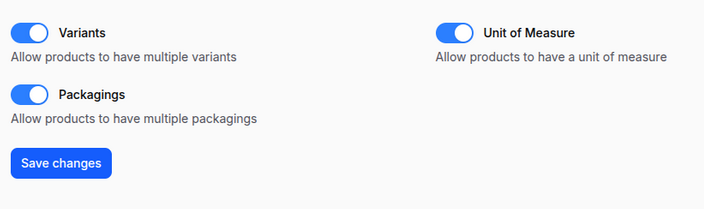
Before you begin, enable the following settings:
Navigate to purchase→ Settings → purchase Section → Manage Product → Save Changes.
Key options to enable:
- Variants → Allow products to have multiple variants based on attributes such as color, size, or material.
- Unit of Measure → Sell products in different units (e.g., units, dozens) for flexible pricing and quantities.
- Packagings → Manage multiple packaging options (e.g., pack of 6, box of 12) to optimize shipping and bulk sales.

Product Creation
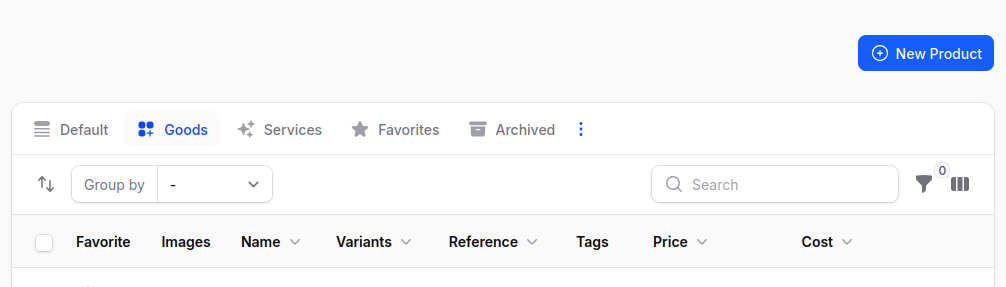
Step 1: Navigate to Product Creation
Go to purchase → Product → Product → New Product.

Step 2: Fill Out the Product Form
Basic Details
- Name → Enter the product or service name.
- Description → Optional field for product details.
- Tags → Create or select tags for quick filtering or classification.
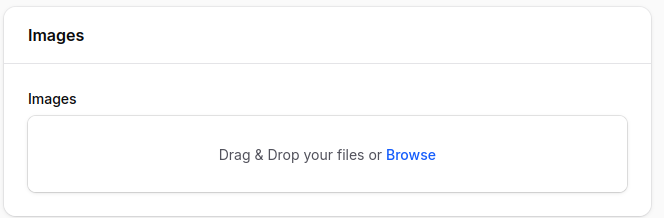
- Images → Upload one or more product images.

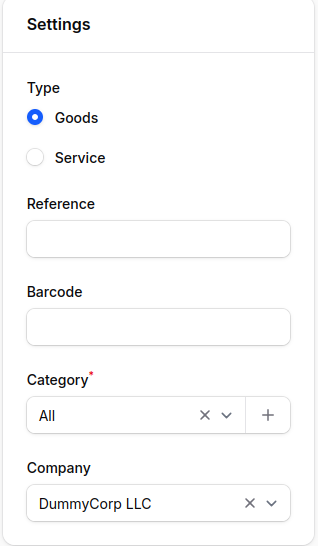
Settings Section
- Type → Choose between:
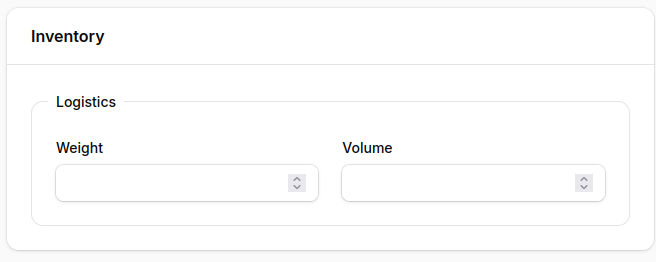
- Goods → Tangible items requiring stock tracking.
- Service → Intangible offerings like consulting or maintenance.
Note: Selecting Goods reveals an Inventory section at the bottom of the page.

- Reference → Product reference code.
- Barcode → Barcode for scanning or POS systems.
- Category → Select an existing category or create a new one. By default, All is selected.
- Company → Choose from the list of companies (multi‑company support).

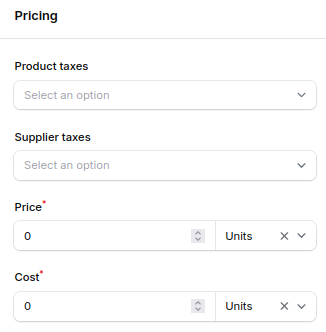
Pricing Section
- Price → Selling price of the product.
- Cost → Purchase cost from the vendor.
- Product Taxes → Taxes applied when selling to customers.
- Supplier Taxes → Taxes applied when purchasing from suppliers.

Action Buttons
At the bottom of the form, you’ll find:
- Create → Save and create the product.
- Create & Create Another → Save current product and reset form for new entry.
- Cancel → Exit without saving.
After Product Creation
Once you click Create, the system redirects to the View Product page.

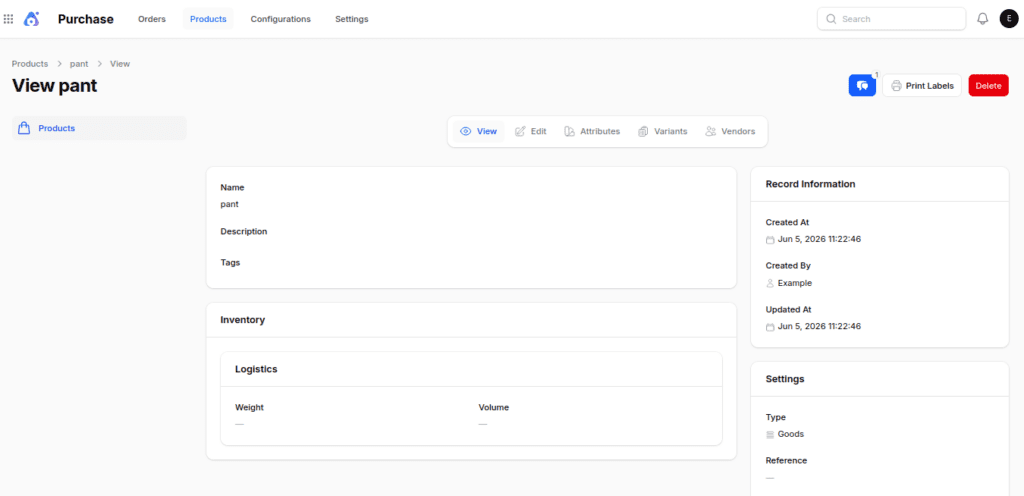
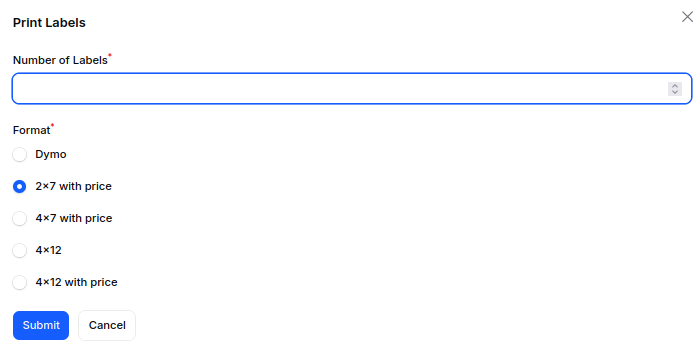
Print Labels:
- Opens a modal with the following fields:
- Number of Labels: Enter the number of labels to print.
- Format: Choose label dimension and price inclusion (e.g., 2×7 with price, 4×12 without price).
- Clicking Submit downloads a PDF of the generated labels

Delete: Permanently removes the product.
Attribute & variants
Attributes
- Clicking Attributes redirects to the Manage Attributes page.

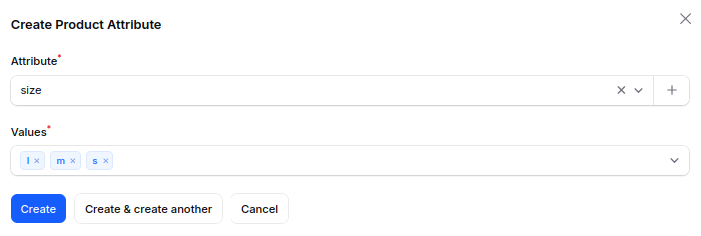
- Click Add Attribute to open a modal:
- Attribute: Select or create a new attribute.
- Values: Enter the values associated with the selected attribute.

Note: We can also create the attribute by navigating to the
Purchase ->configuration->product section->attribute ->new attributes

Creating Variants
- Click the Generate Variant button.
- A notification confirms variant generation.
Variant Page
Here, all generated variants of a product are displayed. You can:
- View → See variant details.
- Edit → Update variant information.
- Delete → Remove specific variants.


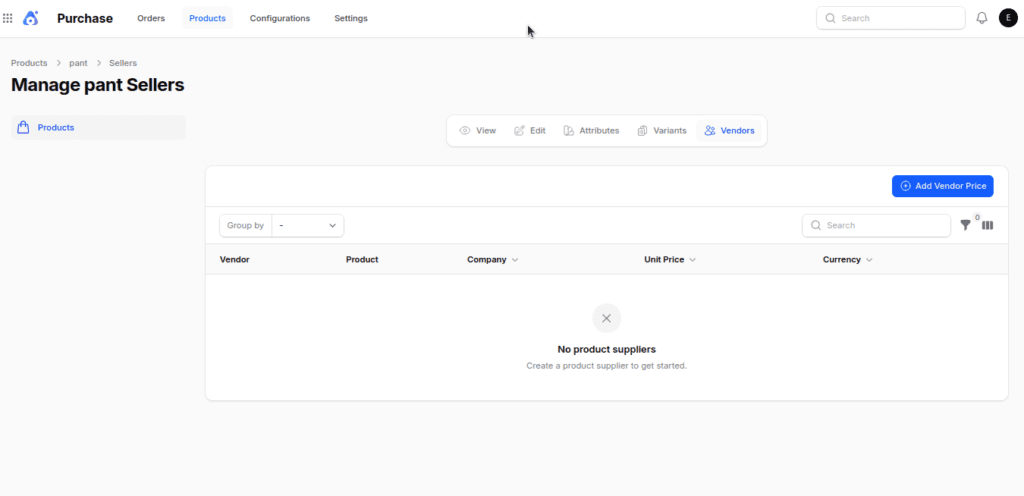
Vendor Tab
From this tab, you can add or create a Vendor Price List directly for the selected product.
Final Thoughts
The Products module in Aureus ERP helps businesses manage goods and services efficiently from a single platform.
With support for attributes, variants, pricing, packaging, and inventory, it simplifies product management and streamlines purchasing operations.
By properly configuring products and their variants, businesses can maintain accurate records, improve procurement workflows, and enhance overall efficiency.