The Purchase Orders in AureusERP assists companies in creating, handling, and processing quotes from suppliers.
It acts as an official request to vendors, gathering information about products, prices, and delivery conditions before turning into purchase orders.
Steps to Create Request for Quotation
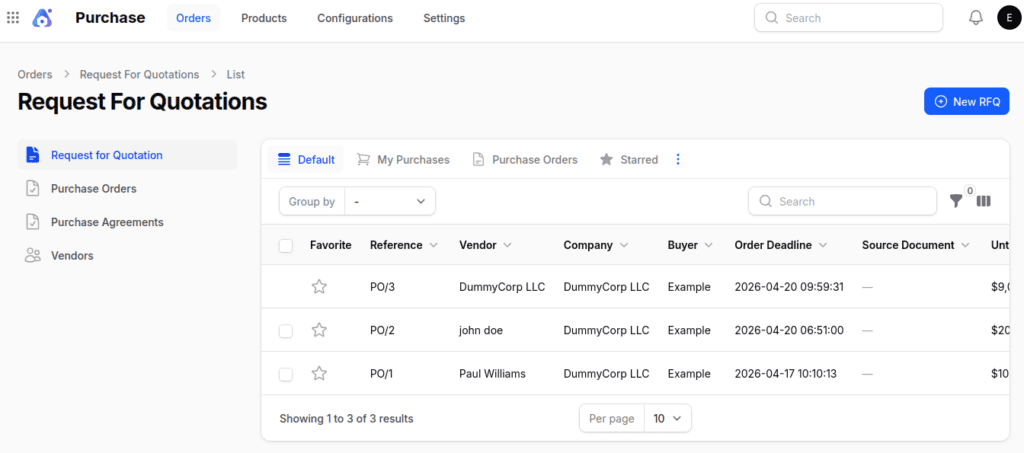
To get to the Request for quotation page, start at the main dashboard and click on the Purchase plugin.

Step 1: Open the Purchase Module
You can check out the current Request for Quotations or start a new one.
Step 2: Start a New Request for Quotation
Press the New Request for Quotation button located at the top right. A new form will pop up for you to fill in the details
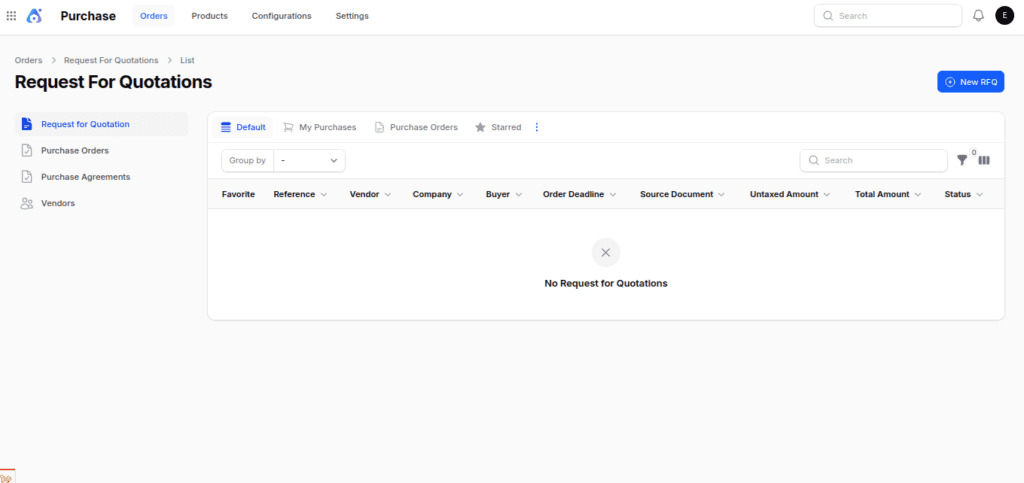
Step 3: Filling out the details in RFQs
1. General section:
- Vendor → Select the supplier from whom the quotation is requested.
- Order Deadline → Specify the last date by which the vendor must respond.
- Vendor Reference → Enter the vendor’s reference number or order ID for cross‑verification.
- Expected Arrival → Record the estimated delivery date for the requested items.
- Agreement → Link the RFQ to an existing purchase agreement (e.g., blanket order) if applicable.
- Currency → Define the transaction currency. By default, this auto‑fills with your company’s base currency but can be adjusted if needed.
2. Product Section
- Product → Select the item you want to purchase from your product list.
- Expected Arrival → Define the date you expect the product to be delivered.
- Quantity → Enter the number of units you wish to order.
- Unit → Choose the unit of measure (e.g., Units, Dozens, Kilograms).
- Packaging Qty → Specify how many items are included in one package or box, useful for bulk handling.
- Packaging → Select the packaging type (e.g., carton, box, pallet).
- Unit Price → Enter the price offered by the vendor for each unit.
- Taxes → Apply the relevant tax group or rate to the product.
- Discount (%) → Record any vendor‑provided discount.
- Amount → Auto‑calculated total based on quantity, unit price, taxes, and discounts.
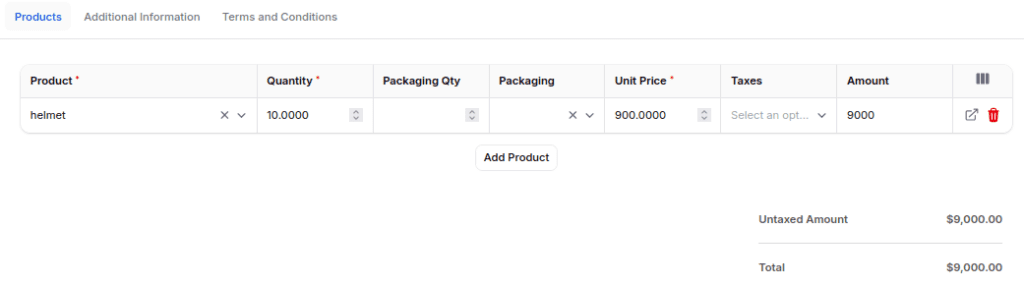
Note: –The system shows the “Packaging Qty” and “Packaging” fields only if you turn on Packaging in the settings.

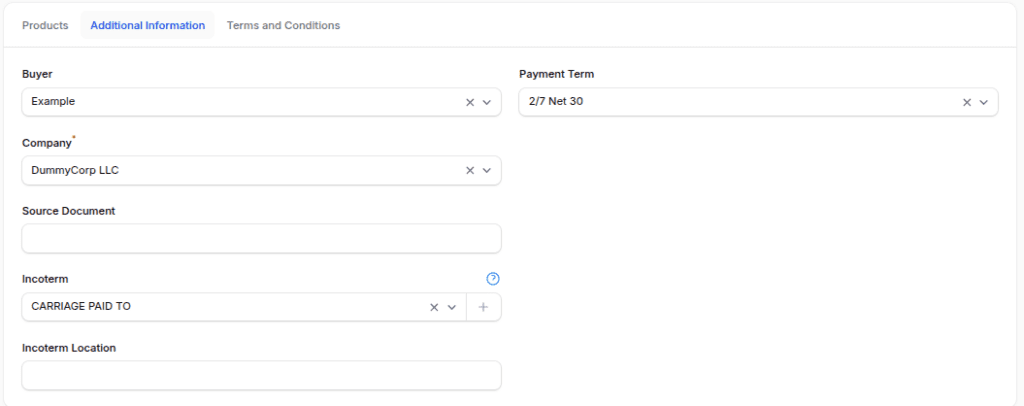
3. Additional Information Section
- Buyer → The internal employee responsible for managing this purchase.
- Payment Term → Define the payment conditions agreed with the vendor (e.g., 30 days, Immediate).
- Company → If your organization operates multiple companies in Aureus ERP, select the one initiating this purchase.
- Source Document → Reference any linked document (e.g., sales order, contract) to maintain traceability.
- Incoterm → Specify the international commercial term that defines shipping responsibilities (e.g., FOB, CIF).
- Incoterm Location → Record the location tied to the incoterm, such as a port name or delivery warehouse.
4. Terms and Conditions
Please include any legal terms, warranty details, refund policies, or extra instructions that are relevant to this order.
Step 4: Save or Cancel
At the bottom of the form:
- Create: Save and generate the quotation.
- Create & Create Another: Save and open a new form.
- Cancel: Discard changes.

Managing Order Settings in Aureus ERP Purchase
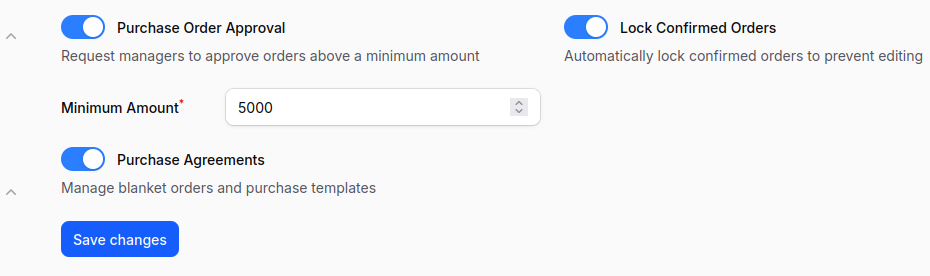
In the Purchase module of Aureus ERP, you can turn on important order management features right from the settings.
Navigation: Go to Purchase → Settings → Purchase Section → Manage Orders
Available Options:
- Purchase Order Approval → Activate approval workflows for purchase orders.
- Lock Confirmed Orders → Prevent changes once an order is confirmed.
- Purchase Agreement → Enable linking RFQs and orders to purchase agreements.
After RFQ Creation
After you successfully create a Request for Quotation (RFQ), the system quickly shows a message on your screen that says your Order has been Created.
You will also be taken directly to the Edit Purchase Order view.
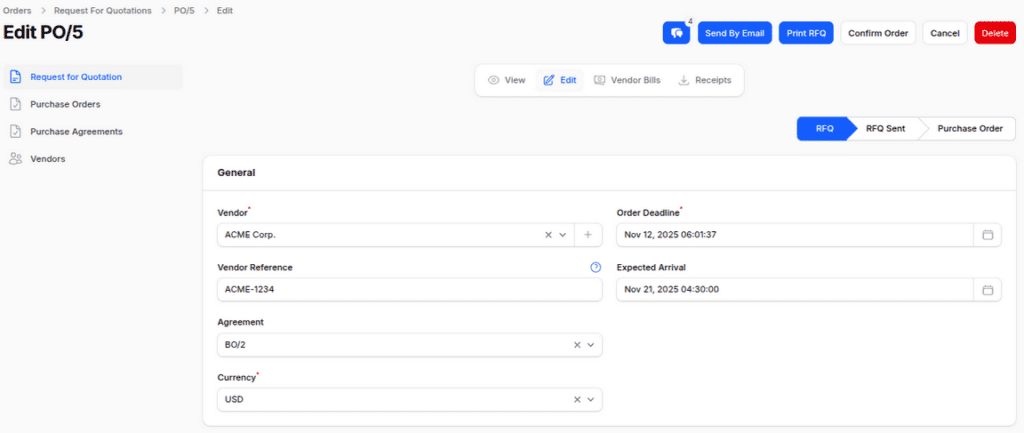
Available Actions on View Page:
- Edit Quotation: Modify RFQ details.
- Vendor Bills: View vendor bills.
- Receipts: Manage delivery receipts.

- Send by Email: Send this RFQ directly to the vendor.
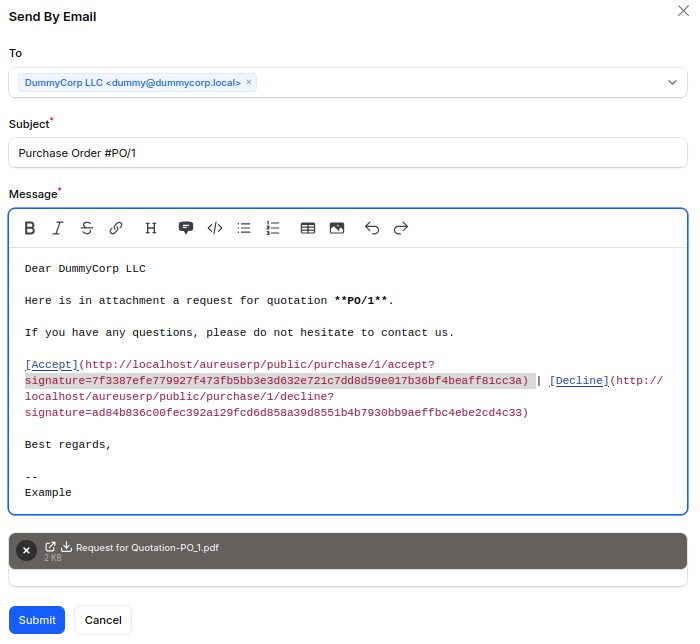
- Print RFQ: Download or print the quote in PDF format.
- Confirm Order: Approve the RFQ and convert it into a Purchase Order.
- Cancel: Cancel the RFQ.
- Delete: Permanently delete the RFQ.
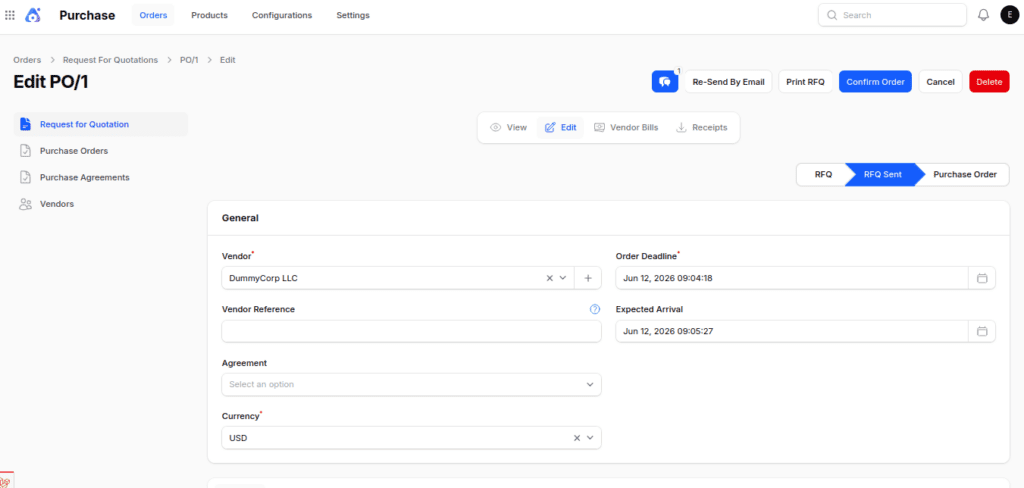
After Confirmation of RFQ
When you confirm an order, the Request for Quotation (RFQ) is immediately turned into a Purchase Order.
You can see and manage all created purchase orders from the Purchase Order page, which provides a central place to keep track of procurement activities.
Note: You can start a new RFQ right from the Purchase Order page, which makes it easy to begin the quotation process while you’re managing your orders.
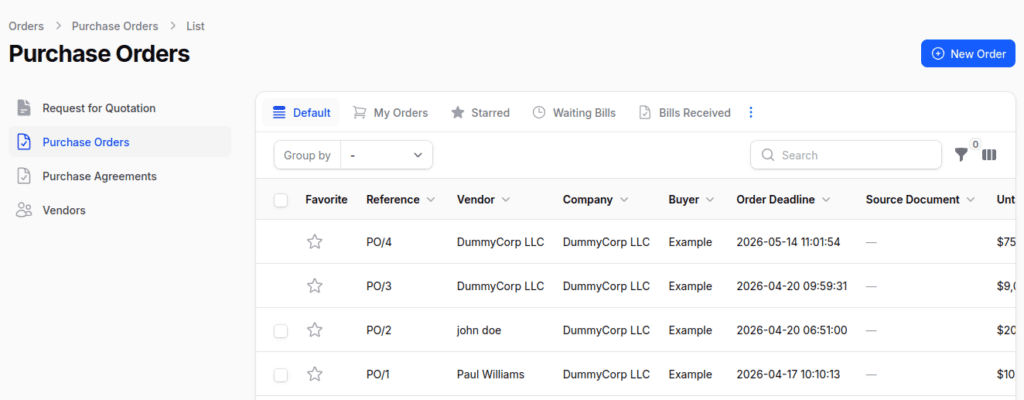
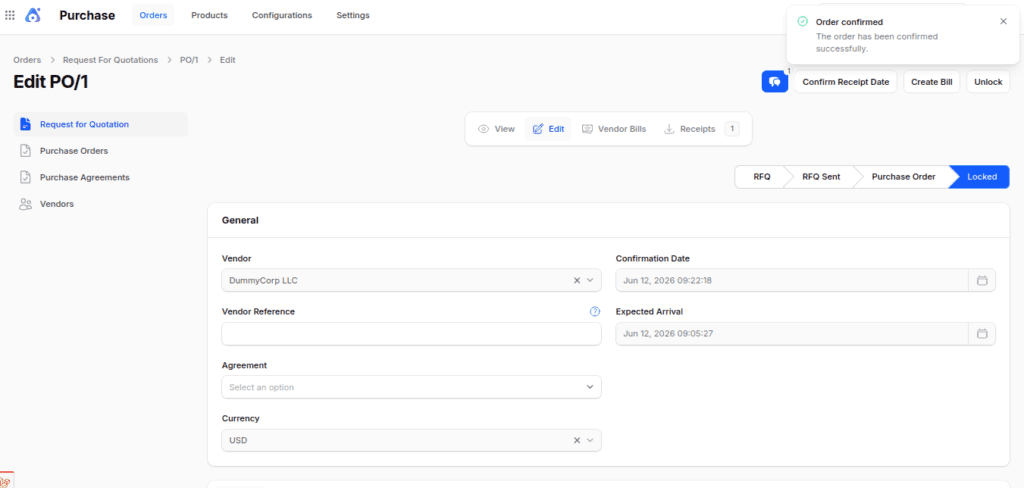
At the point of Confirming an Order , several automatic changes occur:
- Document Status → The RFQ is converted into a Confirmed Purchase Order.
- Field Locking → All fields become locked, preventing further edits.
- Automatic Receipt → The system instantly generates a receipt document.
- New Action Buttons → The system displays additional options on the screen:
- Confirm Receipt Date → Validate the expected receipt timeline.
- Create Bills → Generate vendor bills linked to the purchase order.
- Unlock → Reopen the order for modifications if adjustments are required.
Receipt Validation Flow
1. Go to the Receipts tab.
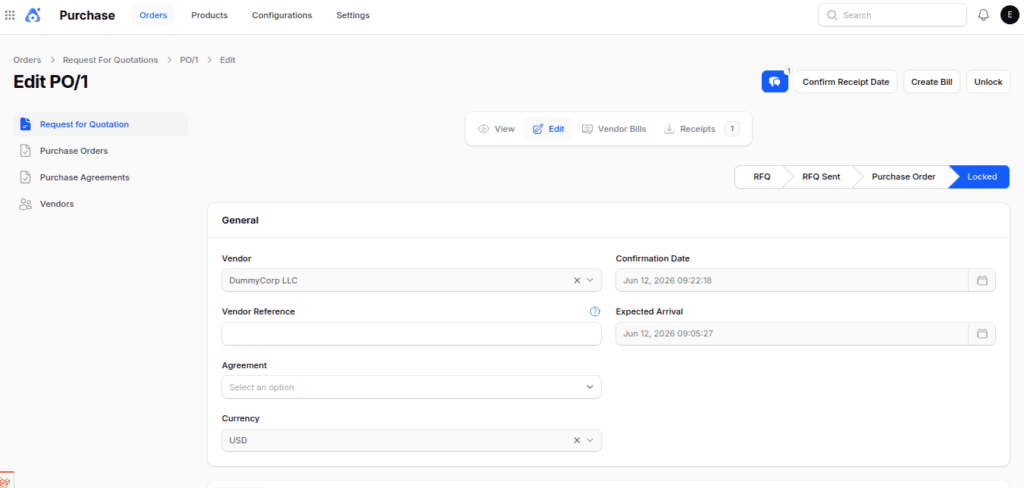
2. Click Edit if needed (e.g., change quantity received).
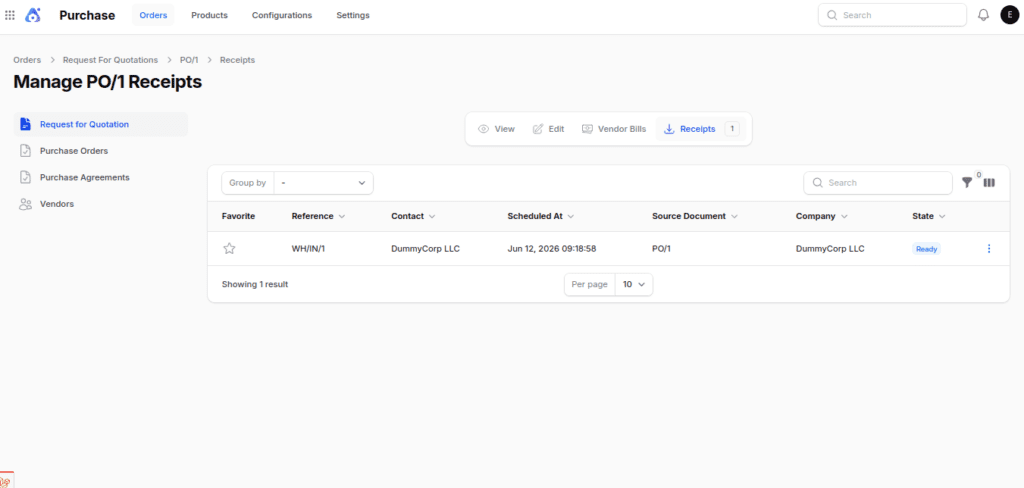
3. Click Validate to confirm that the system records the products in inventory.
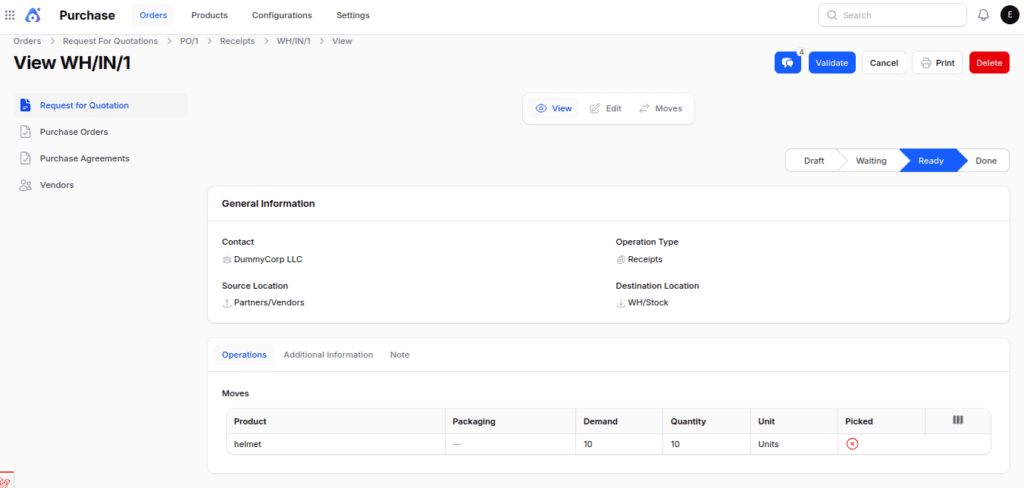
Note: You can only create vendor bills after you check the receipt.
Vendor Bill Generation
1. Click on Create Bill button.
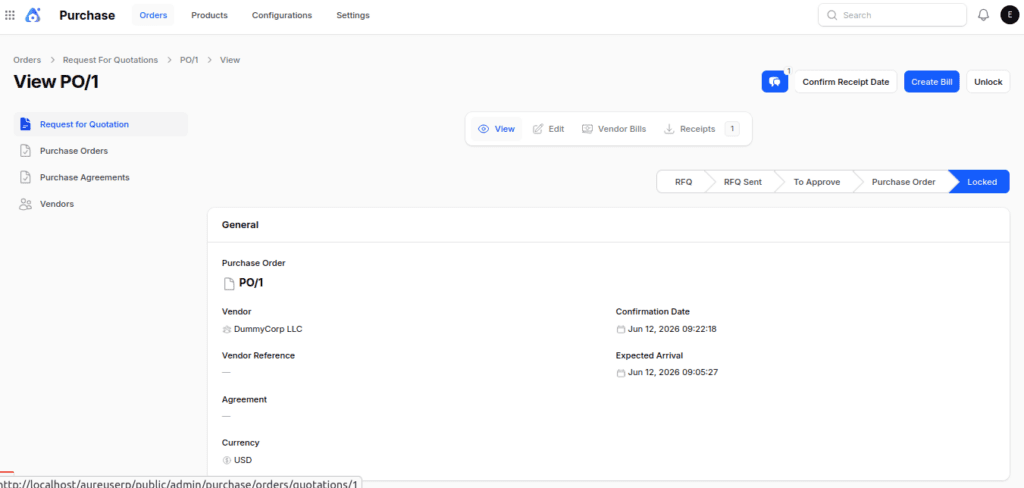
2. The system auto-fills bill data from the purchase order.

3. You can review, edit, and save the bill. Then click confirm.
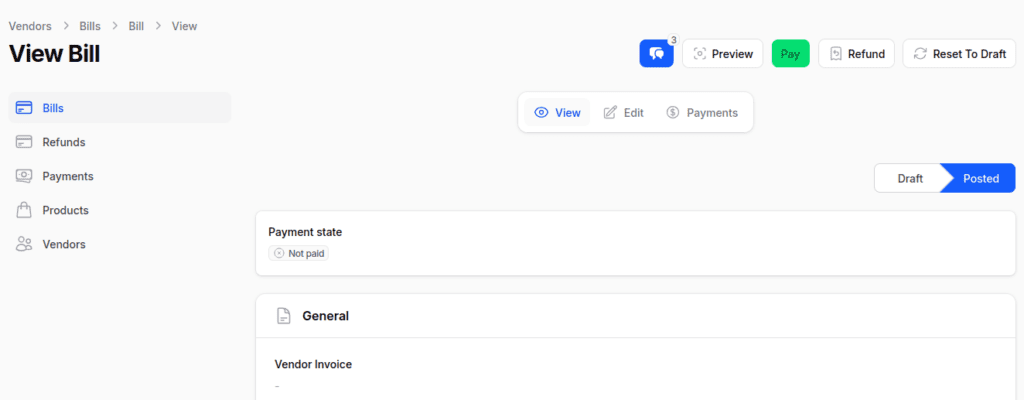
4. After confirming the purchase order actions, the system automatically redirects you to the Invoice/Bill view. From here:
- You can review the generated vendor bill details.
- To settle the payment, simply click the Pay button located beside the Preview button.
Final words
Aureus ERP makes procurement easier by linking RFQs, purchase orders, receipts, bills, and payments all in one process.
Businesses can improve efficiency and accuracy in purchasing activities.The platform improves collaboration between purchasing, inventory, and accounting teams.
Aureus ERP provides full visibility and control from supplier quotes to final payments.
This helps businesses make quicker decisions while keeping their procurement process organized.


Be the first to comment.