The Purchase Agreements tool in the Purchases plugin of Aureus ERP helps buying teams create long-term contracts with suppliers.
Additionally, it allows organizations to manage purchasing better and maintain consistent supplier terms.
These agreements are specifically created to:
- Streamline bulk purchases → Simplify procurement of large quantities by consolidating vendor commitments.
- Support recurring orders → Automate and manage repeat purchases without recreating RFQs each time.
- Enable negotiated pricing → Lock in agreed rates with suppliers for consistent cost control.
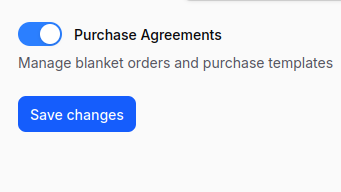
Note: Enabling Purchase Agreements
To use the Purchase Agreement feature in Aureus ERP, you first have to enable it in the settings. Before you create any agreement, ensure that this option is turned on.
Navigation Path:
Purchase → Settings → Purchase Section → Manage Orders → Enable Purchase Agreement toggle →Save changes
Steps to Create a Purchase Agreement
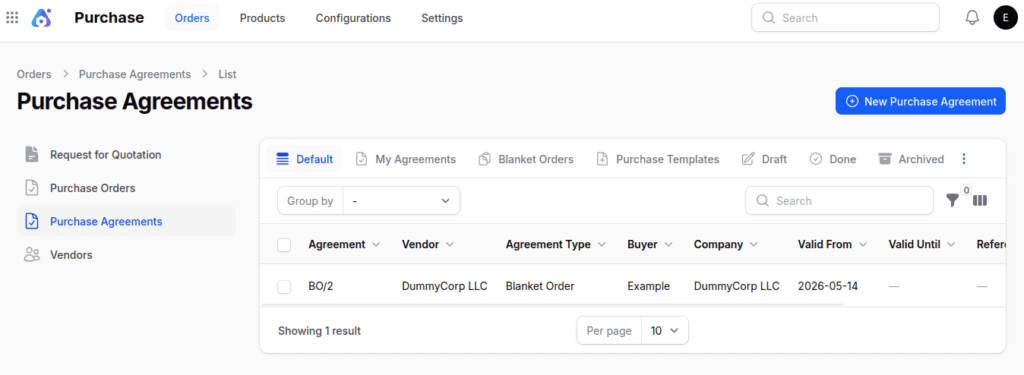
Step 1: Navigate
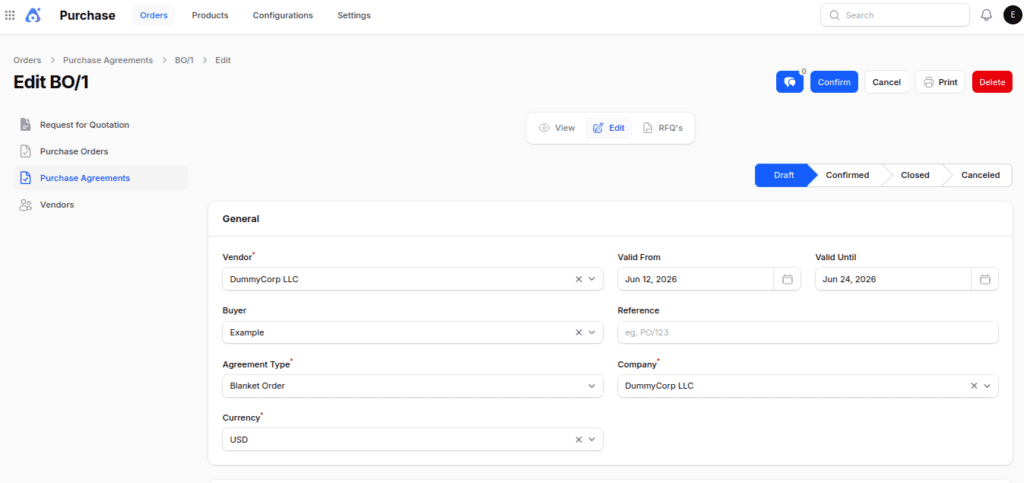
Go to Purchase → Orders → Purchase Agreements → New Purchase Agreement.
Step 2: Fill Out General Information
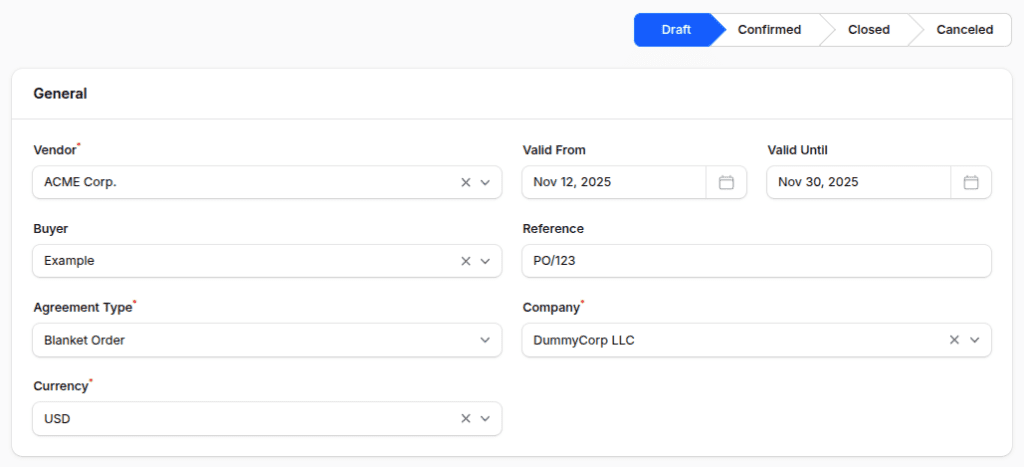
- Vendor →First, select the supplier in the Vendor field.
- Valid From → Enter the start date of the agreement.
- Valid Until → Enter the expiry date of the agreement.
- Buyer → Next, assign the internal user responsible for managing the agreement.
- Reference → Add an internal or vendor‑specific tracking reference.
- Agreement Type →
- Blanket Orders → Commit to purchase specific quantities over time.
- Purchase Template → Use predefined products for templated orders.
- However, if Purchase Template is selected, the Valid From and Valid Until fields are hidden.
- Company →Finally, select the issuing company if you are working in a multi-company environment.
- Currency → Define the transaction currency (e.g., USD, INR).
Step 3: Fill Out Product Section
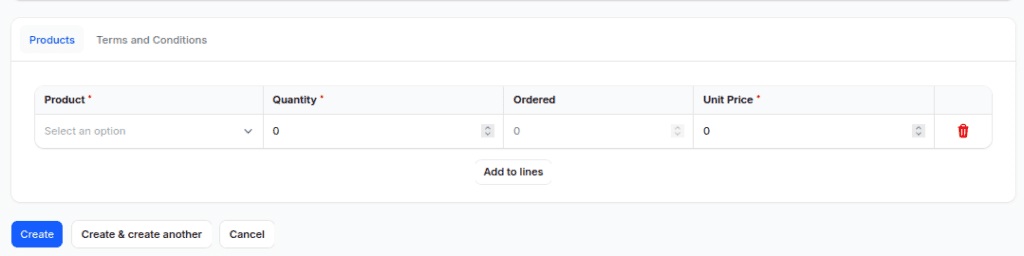
- Product → Select from the product catalog.
- Quantity → Then, enter the agreed quantity.
- Unit → Choose the unit of measure (e.g., Units, Dozens).
- Unit Price → After that, enter the negotiated price.
- Also, you can add many products to one agreement, so one agreement can include several items.
Step 4: Save Agreement
Click Create to generate the agreement.
After Creating a Purchase Agreement
When you click on Create, the system takes you to the Edit Purchase Agreement page. At this stage, the agreement is made in Draft status.
Available Actions:
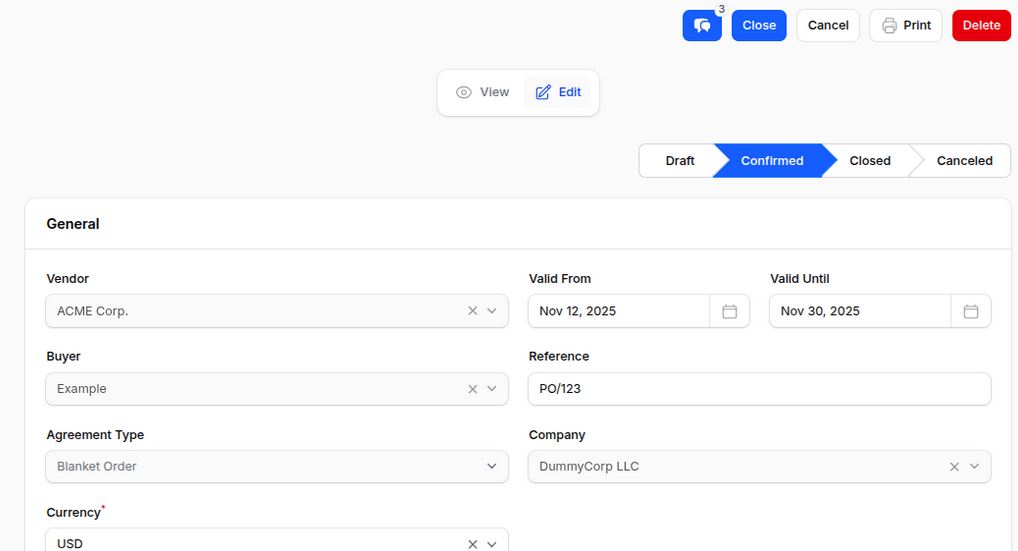
- Confirm:
- Finalizes the agreement.
- Once confirmed, the status changes from Draft to Confirmed and Posted.
- Afterward, all fields become read-only to prevent unintended changes
- Consequently, the Confirm button changes to Close.
- Close: Meanwhile, the Close action marks the agreement as completed or no longer in use.
- Cancel: Voids the agreement.
- Print: Generates a print-friendly version of the agreement.
- Delete: Permanently removes the agreement.
Using Purchase Agreements in RFQs
Step 1: Navigate to RFQ Form
Go to Purchase → Orders → RFQ → New RFQ.
Step 2: Select Vendor
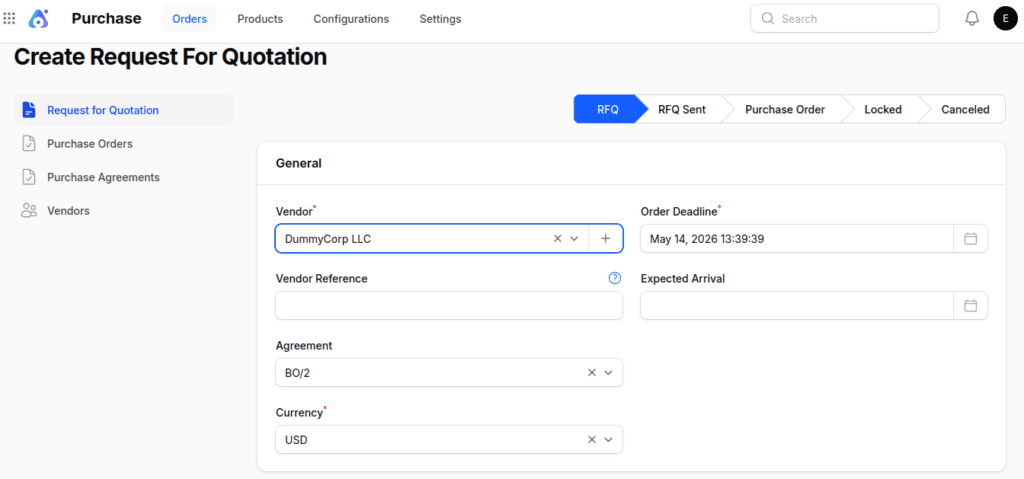
- In the Vendor field of the General Section, choose the supplier.
- The system automatically searches for any Purchase Agreement related to the selected vendor. This way, users can easily connect current agreements to new RFQs.
Step 3: Auto‑Populate Agreement Field
- If a matching agreement is found, the Agreement field is filled automatically. Otherwise, users can continue without selecting an agreement.
- In cases where multiple agreements exist, choose the appropriate agreement from the drop-down list.
Step 4: Continue RFQ Creation
Fill in product details, quantities, and pricing as usual.
Final words
Purchase Agreements in Aureus ERP help businesses buy stuff more easily by creating long-term contracts with suppliers.
Also, they make it easier to avoid buying the same things over and over again and make sure that the terms for buying stay the same for every order.
Additionally, having set prices and agreed amounts helps companies manage their expenses and build better relationships with suppliers.
Because of this, companies can buy things better and keep a steady supply chain.
Additionally, combining Purchase Agreements with RFQs makes orders more accurate and lessens the amount of manual work needed in the buying process.
In the end, this helps buying teams run their operations better and have an easier time with the purchasing process.


Be the first to comment.