A serial number is a unique ID assigned to a specific product unit. Unlike lot numbers, serial numbers are assigned to individual products. Each item has its own unique identity.
This helps businesses track every product separately throughout its entire lifecycle. Monitoring serial numbers is a crucial aspect of efficient Inventory Management.
It enables companies to maintain a precise record of each product and its movement.
Benefits of Using Serial Numbers
Tracking serial numbers makes managing inventory better in many ways. For instance, it assists businesses:
- Enhance product traceability by monitoring every single item.
- Minimize inventory mistakes since each product has its own unique identity.
- Easily find products when doing audits and checking stock.
- Improve quality control by spotting faulty items.
- Keep an eye on how products move from when they arrive to when they are delivered.
Enable lots & serial Numbers
To keep an eye on products with serial numbers, you need to turn on two settings:
1. To start using serial number tracking, you need to turn on Lots & Serial Numbers in the Manage Traceability section.
Go to: Inventory → Configuration → Settings.
Next, go to the Traceability section and turn on Lots & Serial Numbers, then save your settings. After that, you can set up products for monitoring using unique serial numbers.

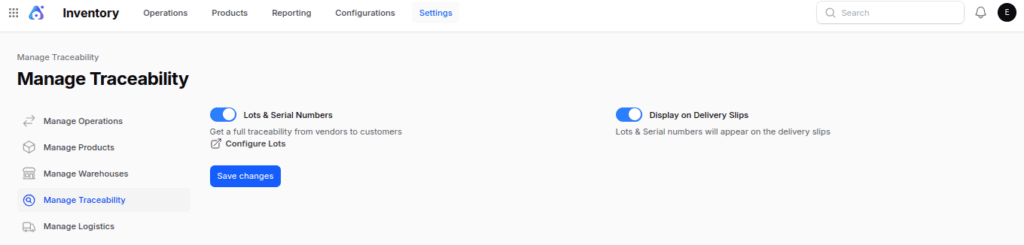
2. Allow users to create new serial numbers or select existing ones. You can enable this for operations like receipts and deliveries.
This means that you can track serial numbers on warehouse receipts and delivery orders.
Go to Inventory -> Configuration -> Operations Types.
Choose the operation type you want.

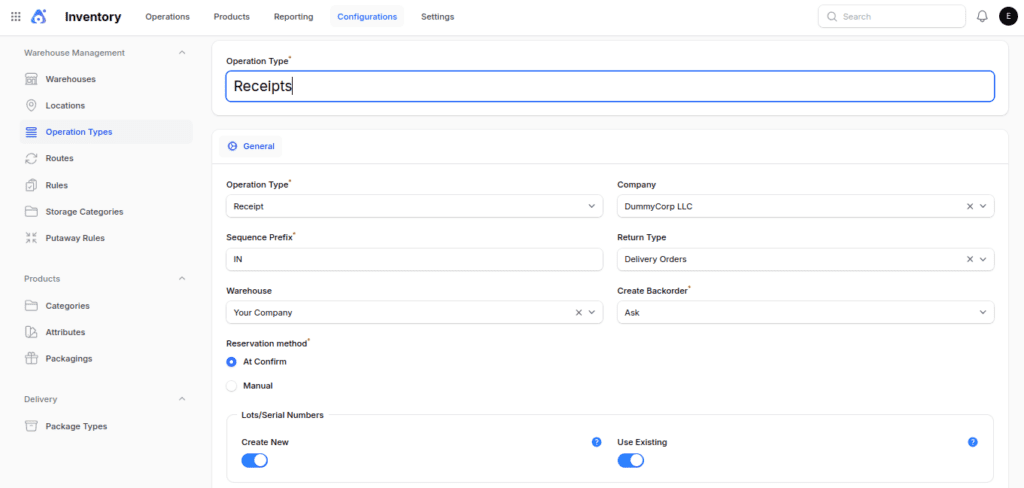
Next, allow the option to create a new one or use an existing one for that specific type of operation.
Configure Products to Use Serial Numbers
Before you can assign serial numbers, you need to turn on track inventory for the product.
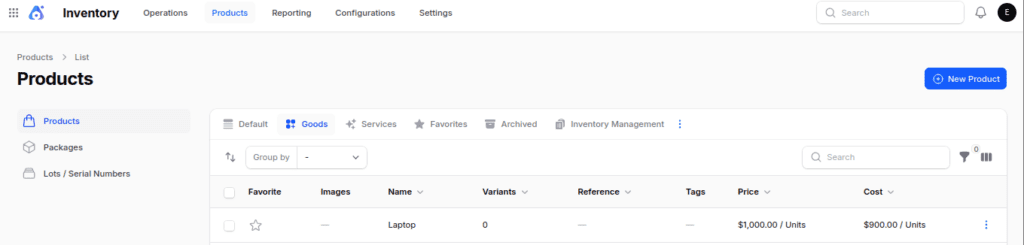
Step 1: Open the Product Form
Go to: Inventory → Products → Products
Next, choose the product you want to keep an eye on or make a new one to track.
Step 2: Enable Tracking
Next, go to the product form and find the Inventory section. Turn on the Track Inventory switch and choose By Unique Serial Number in the Track By dropdown.

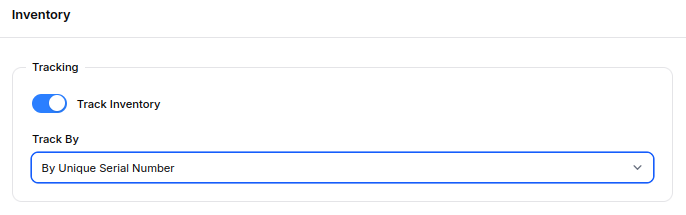
Step 3: Save the Product
Click the Save button.
In the end, after saving, Aureus ERP will need a special serial number for every single unit of that product when doing inventory tasks.
Methods to Create Serial Numbers
Aureus ERP offers two easy methods to generate serial numbers.
Method 1: Create a Serial Number from the Lot/Serial Numbers Menu
This method lets you create serial numbers in advance. You can assign them to products whenever they are needed.
Step 1: Navigate to Lot/Serial Numbers
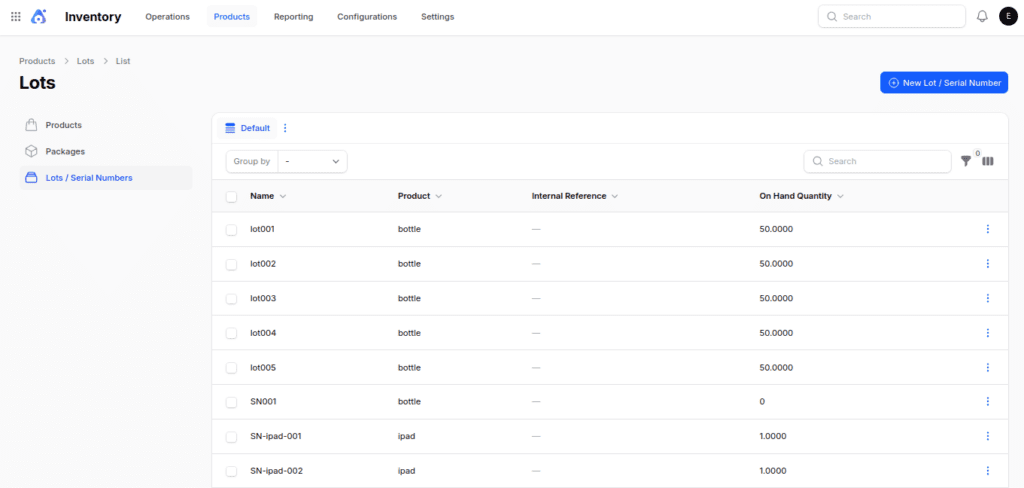
Go to: Inventory → Products → Lots/Serial Numbers
Next, click the New Lots/Serial Number button.
Step 2: Enter Serial Number Details
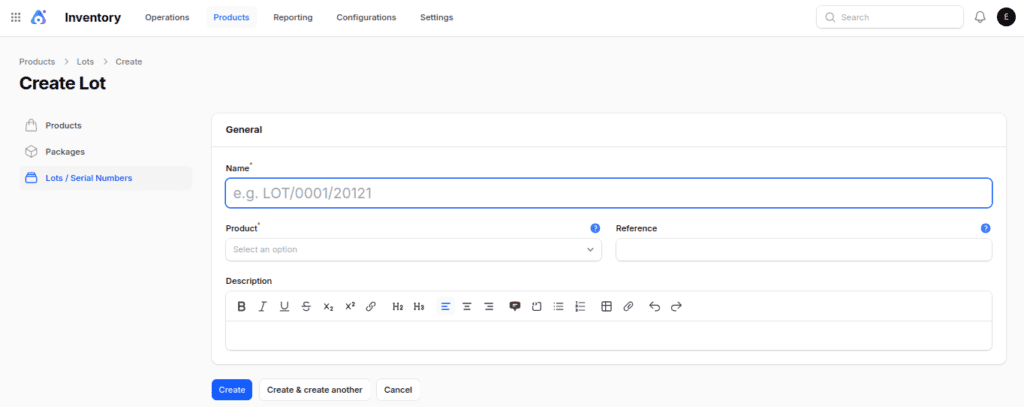
Fill in the following information:
- Name – The unique serial number for the product.
- Product – The product associated with the serial number.
- Reference – An optional internal reference.
- Description – Additional notes or details about the serial number.

Step 3: Save the Serial Number
Press the Create button.
Step 4: Use the Serial Number
Once you create the serial number, you can choose it for receipts, internal transfers, deliveries, and other inventory tasks.
Method 2: Create a Serial Number While Processing Inventory Transfers
Users can generate and assign serial numbers during the transfer process. Everything is done from the same screen.
Step 1: Open a Transfer
Open the receipt, delivery order, or internal transfer that you want to assign serial numbers to.
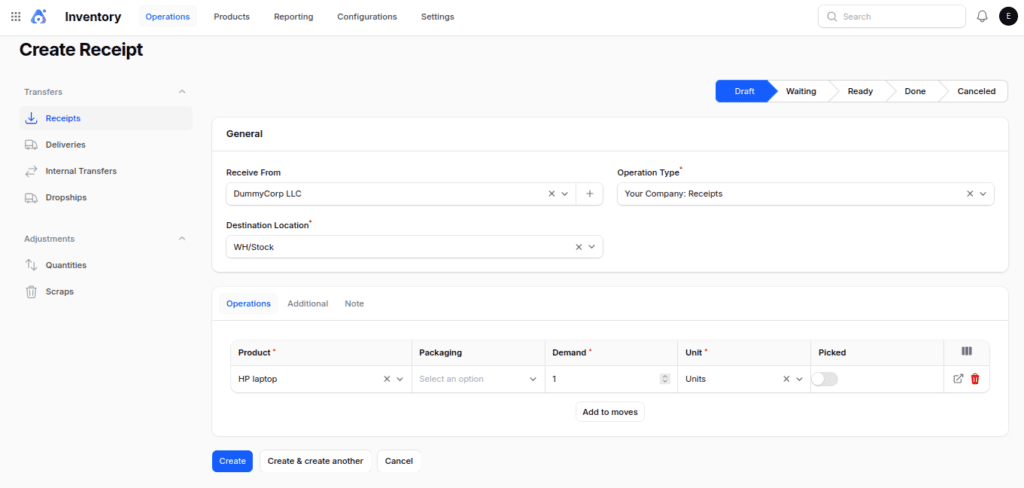
Next, press the Create button.
Step 2: Access Detailed Operations
Next, press the Mark as Todo button.
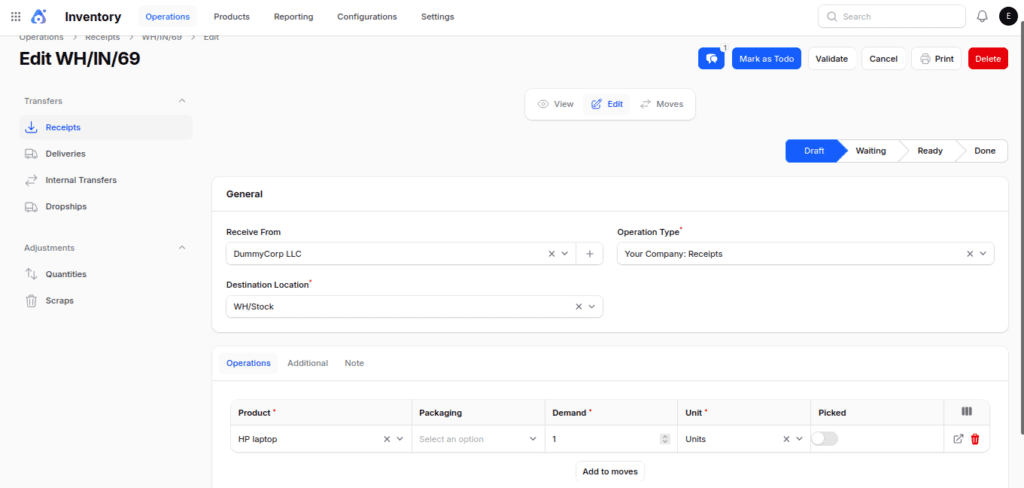
In the Operations tab, click on the menu icon found in the quantity column. This will open the Manage Stock Moves window.
Step 3: Open the Manage Stock Moves
In the pop-up window, there are three choices available.

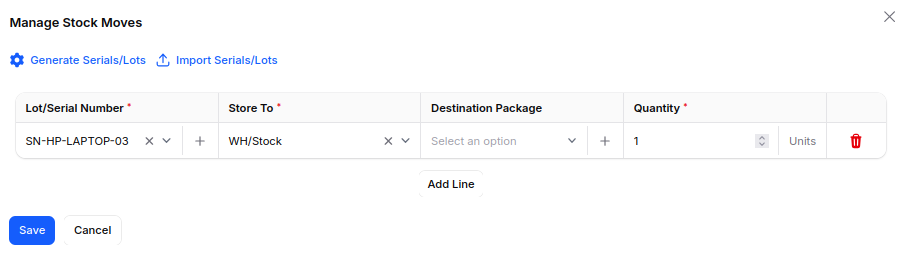
1. To enter the serial number, just click the + sign in the Lot/Serial Number field and type it in manually.

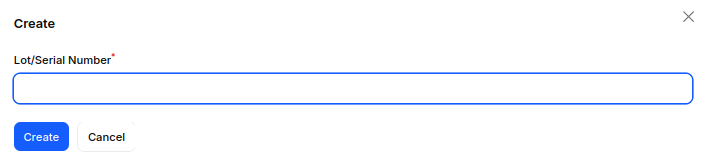
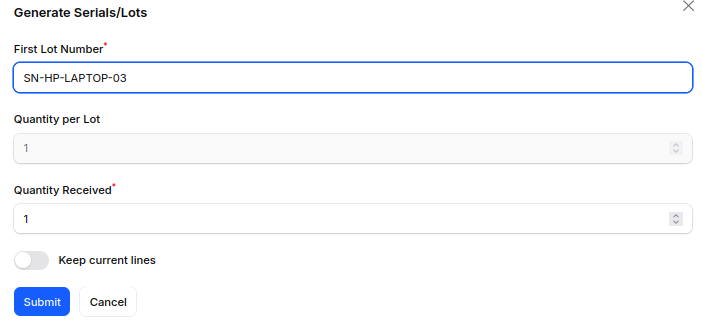
2. When we have a larger number of products. We can automatically create serial numbers by clicking on the Generate serials/lots option.

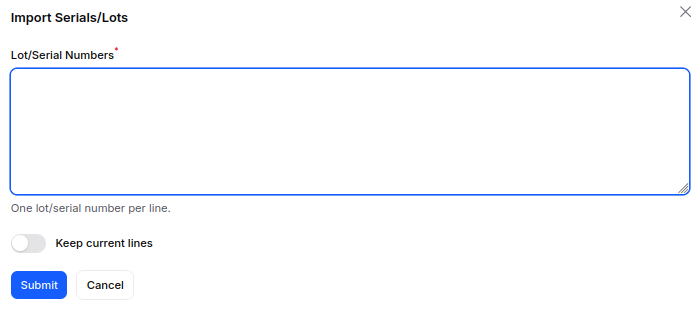
3. Use the import serials/lots option to assign a serial number.

Step 4: Assign the Serial Number
After saving, Aureus ERP will automatically include the serial number in the transfer.
So, you can keep working on the receipt, delivery, or internal transfer and still track the product completely.
Standard Workflow for Tracking Products Using Serial Numbers
To grasp how the standard serial number tracking process works, let’s look at an example.
Imagine a company buys 10 laptops. Since each laptop has to be tracked on its own, the company assigns serial numbers to each one for easy identification.
Step 1: Receive the Products
When the warehouse team gets the laptops, they give each one a special serial number:

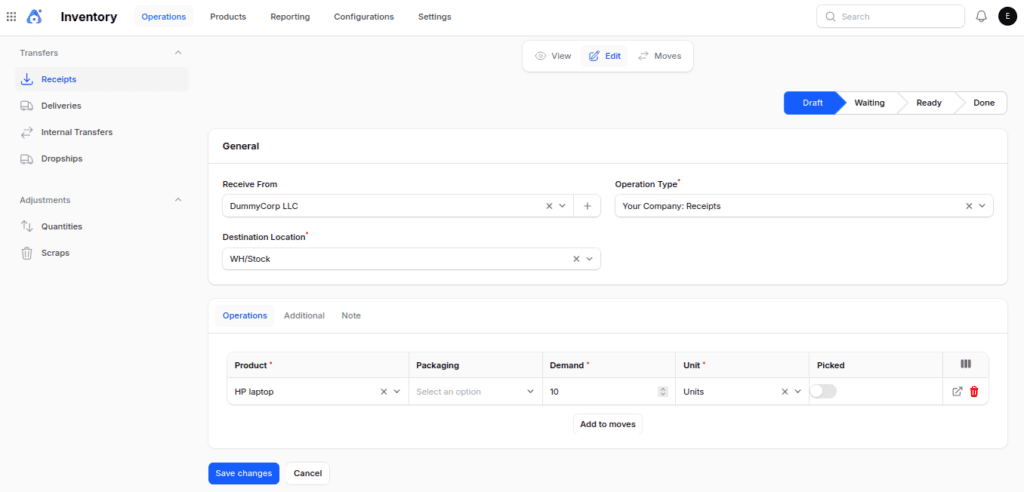
During the receipt process, the warehouse team assigns a unique serial number to each laptop:
- SN-HP-LAPTOP-03
- SN-HP-LAPTOP-04
- SN-HP-LAPTOP-05
- …
- SN-HP-LAPTOP-12

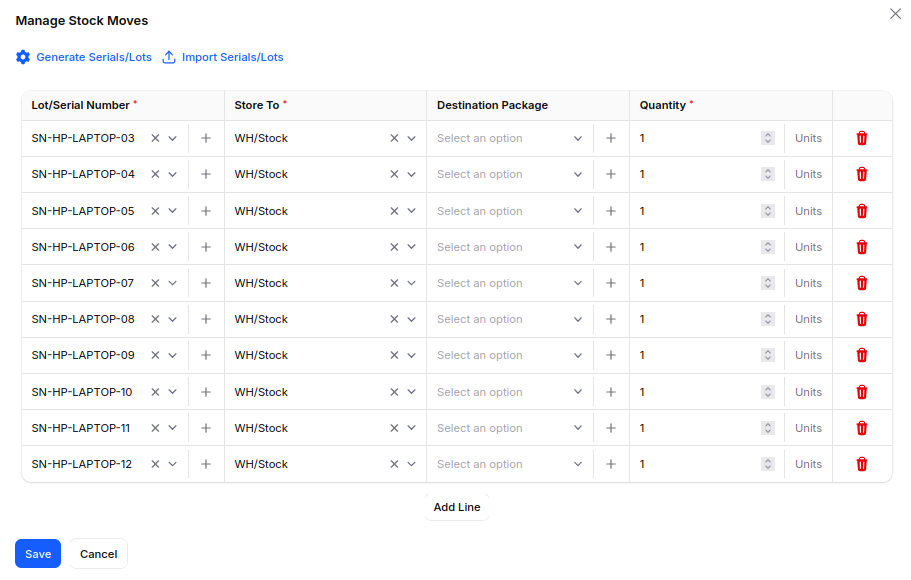
Once the receipt is validated, Aureus ERP logs each laptop as a separate inventory item. You can check this in the moves section.

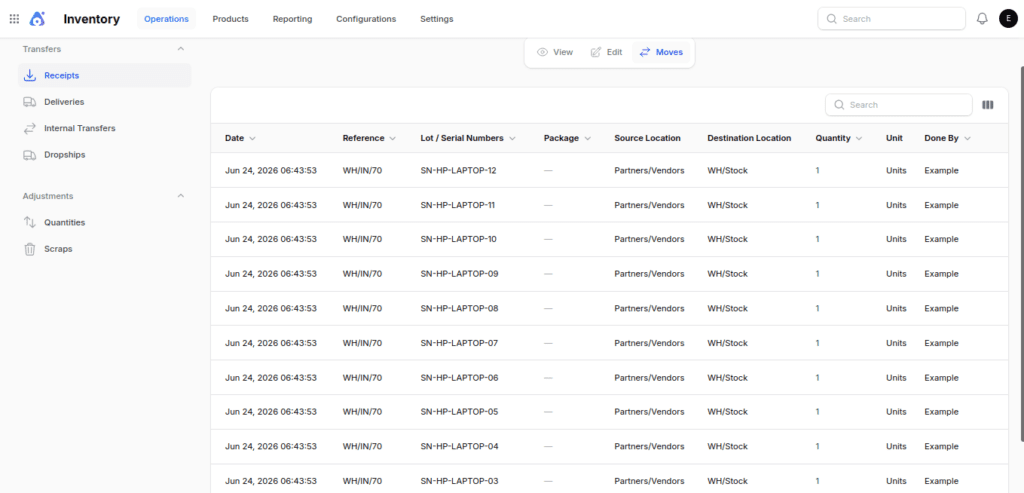
As a result, the company can identify and track every laptop separately.
Step 2: Store the Products
After the receipt is finished, all laptops can be found in the warehouse stock area. You can check this in the reporting section under locations.
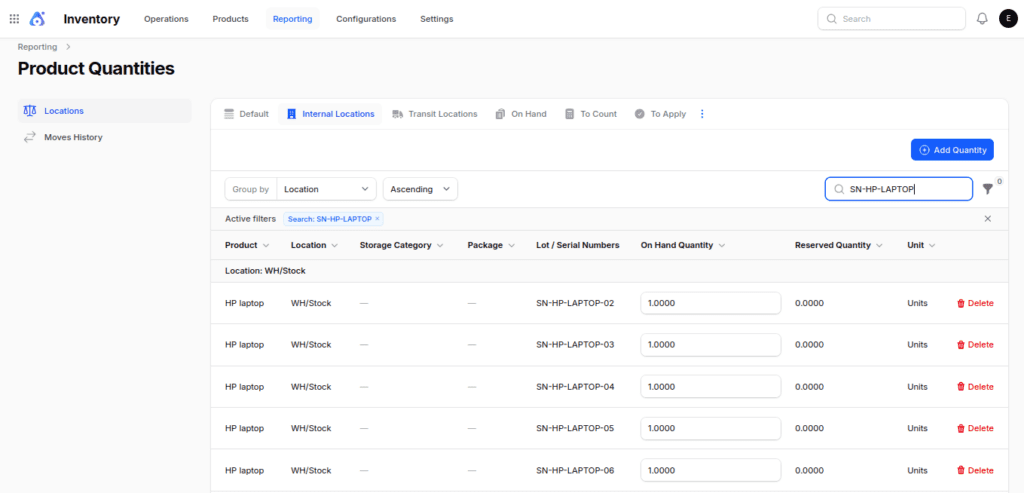
At this point, every laptop has its own unique identity and a record for tracking it.
Step 3: Perform an Internal Transfer
Later on, the warehouse team chooses to transfer some laptops from WH/Stock to a special storage space known as WH/Laptop Area.
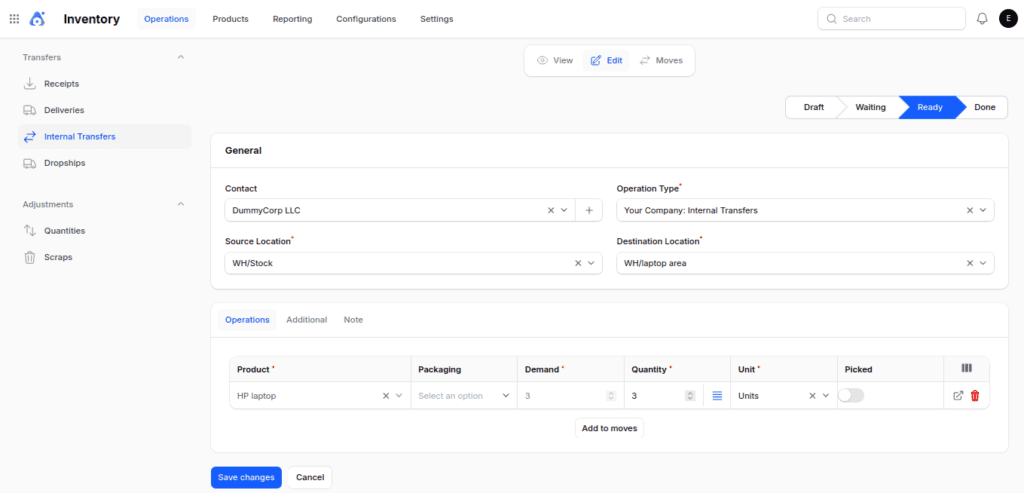
When they do the internal transfer, they choose the exact serial numbers to relocate:
- SN-HP-LAPTOP-04
- SN-HP-LAPTOP-05
- SN-HP-LAPTOP-06

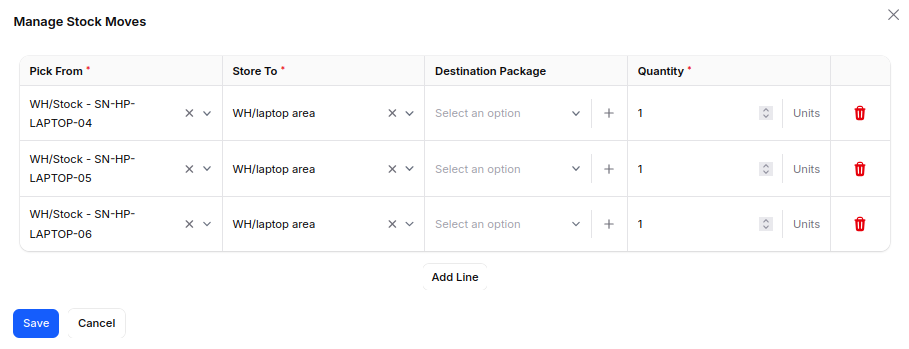
Once the transfer is confirmed, Aureus ERP changes the location of the laptops.

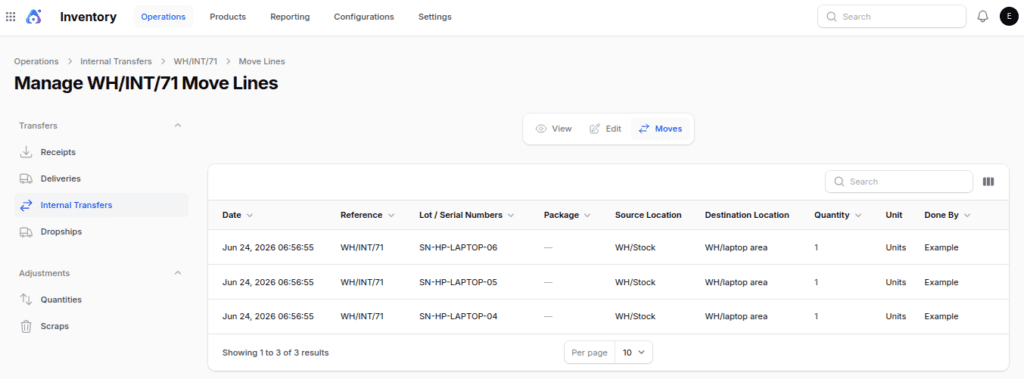
At the same time, the serial numbers stay the same. So, the system keeps following the same physical products.
Step 4: Deliver the Product to the Customer
A customer orders a laptop.

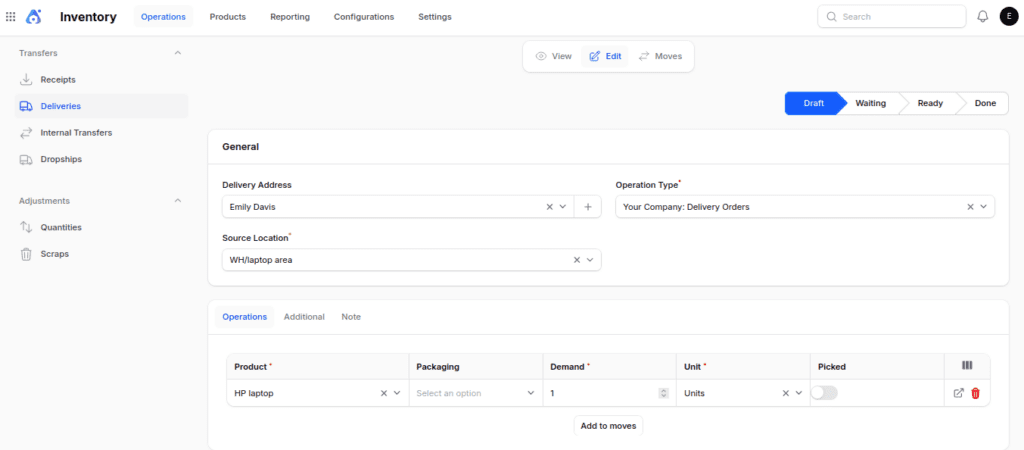
The warehouse team makes a delivery order and picks the serial number SN-HP-LAPTOP-04 from the stock they have.

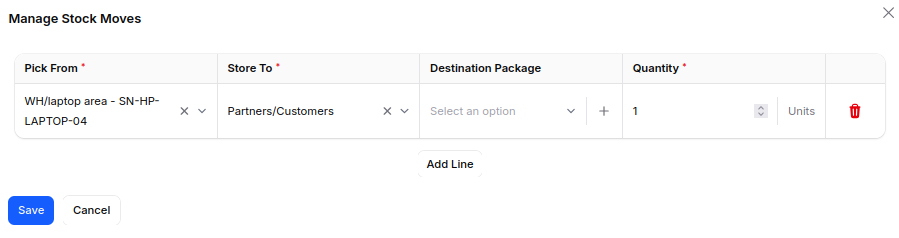
After validating the delivery:
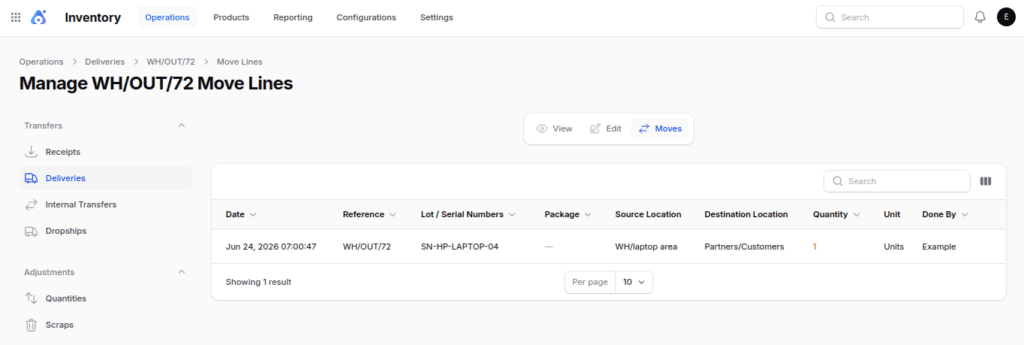
- The SN-HP-LAPTOP-04 has been taken out of the warehouse stock.
- The entire history of movements is still accessible for future use.

Final Words
With serial number tracking, companies can monitor each product closely. Additionally, it enhances the accuracy of inventory and boosts traceability.
Additionally, they can quickly look up the entire movement history of any item whenever they need to.
As inventory tasks get more complicated, keeping track of serial numbers is becoming more crucial.
Businesses that use serial numbers can manage inventory more efficiently. They reduce errors and maintain accurate product records throughout the supply chain.