Locations are specific spots where items are stored or transferred during warehouse activities.
Having a good location setup helps you see your stock better, makes moving inventory faster, and cuts down on picking mistakes.
Every time inventory moves, it begins at one place and finishes at another.
That’s why locations are important for businesses to keep track of their stock correctly and to run their warehouse operations smoothly.
Moreover, it helps businesses track products accurately throughout the supply chain.
Types of Locations
Aureus ERP offers various types of locations for different inventory tasks.
1. Vendor Location
The Vendor Location shows where the supplier keeps their stock.
When you buy something, products come from this place to your warehouse. So, it serves as the starting point for incoming shipments.
2. View Location
A View Location combines several child locations.It doesn’t keep products. Instead, it arranges warehouse spots in a smart way.
3. Customer Location
The Customer Location shows where the customer’s stock is kept.
After delivery, products are taken to this place. So it serves as the final stop for departing shipments.
4. Internal Location
An Internal Location keeps your stock inside the warehouse.Most inventory remains in internal areas until users move or send it out.
5. Inventory Loss Location
The Inventory Loss Location keeps track of stock changes.
The system shifts products to this place when the inventory drops because of things like damage, theft, or errors in counting.
6. Transit Location
A Transit Location is a place where products are kept for a short time as they travel from one warehouse to another.
So, companies can keep an eye on their inventory while it’s being transported.
7. Production Location
The Production Location helps with making things.Raw materials are taken from storage to be used in production.
Once the products are finished, they go back into the warehouse for storage.
Benefits of Warehouse Locations
Warehouse locations offer several advantages.
- Improve inventory organization.
- Increase stock visibility.
- Reduce picking errors.
- Speed up warehouse operations.
- Simplify stock transfers.
- Support accurate inventory tracking.
- Improve warehouse productivity.
Steps to Create a New Location
Follow these steps to create a warehouse location.
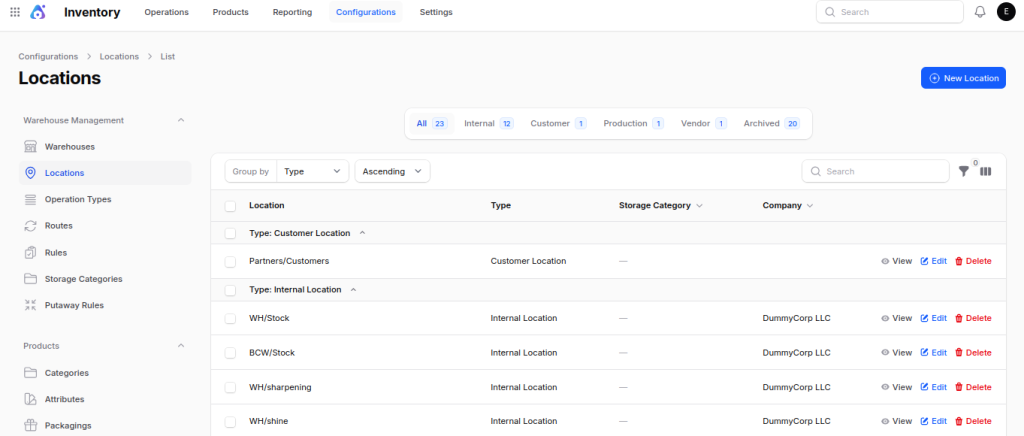
Step 1: Open the Locations Menu
Navigate to: Inventory → Configuration → Warehouse Management → Locations
You can either view the current location or click the New Location button to set up a new one.

Step 2: Fill the Location Details
Complete the following fields.
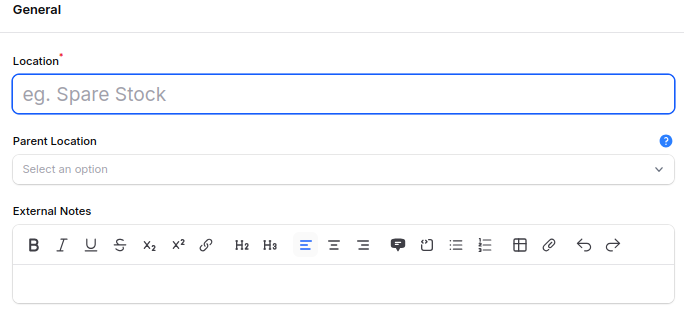
1. General
- Location: Enter the location name.
- Parent Location: Select the parent location. This option creates a location hierarchy.
- External Notes: Add notes if needed. These notes help users understand the purpose of the location.

2. Settings
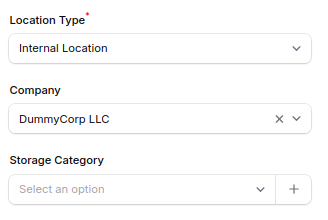
Location Type: Choose what type of location you want. The options are Vendor, Internal, Customer, Transit, Production, Inventory Loss, or View.
Company: Choose the company that owns the location. This section allows for multiple companies in the environment.
Storage Category: If needed, assign a storage category. This option helps to sort products according to storage guidelines.

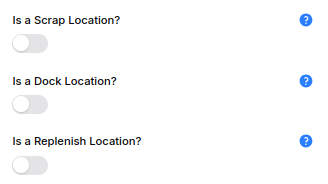
Is a Scrap Location?: If needed, assign a storage category. This option helps to sort products according to storage guidelines.
Is a Dock Location?: Turn on this setting for areas where loading or unloading happens. Warehouse staff use dock spots when receiving and delivering goods.
Is a Replenish Location?: Turn on this option if the location is able to get restocked. The system will then take this location into account during restocking activities.

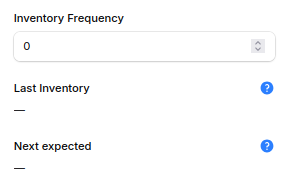
Cyclic Counting: Configure inventory counting for this location. Regular counting improves inventory accuracy.
- Inventory Frequency: Choose how often you want to do inventory counts. For example, you might count the inventory once a month.
- Last Inventory: This field indicates the last inventory count that has been completed. The system updates this information automatically.
- Next Expected: This section indicates the upcoming inventory count. It aids warehouse users in organizing stock verification.

Step 3: Create the Location
Once you fill in all the information, press the Create button. The system will save the location right away.


You can now utilize it for tracking inventory changes.
Where Are Different Location Types Used?
Each location type in the warehouse supports a specific inventory operation.
1. Vendor Location
The vendor location is the place where the supplier shipped their product from.


For example:
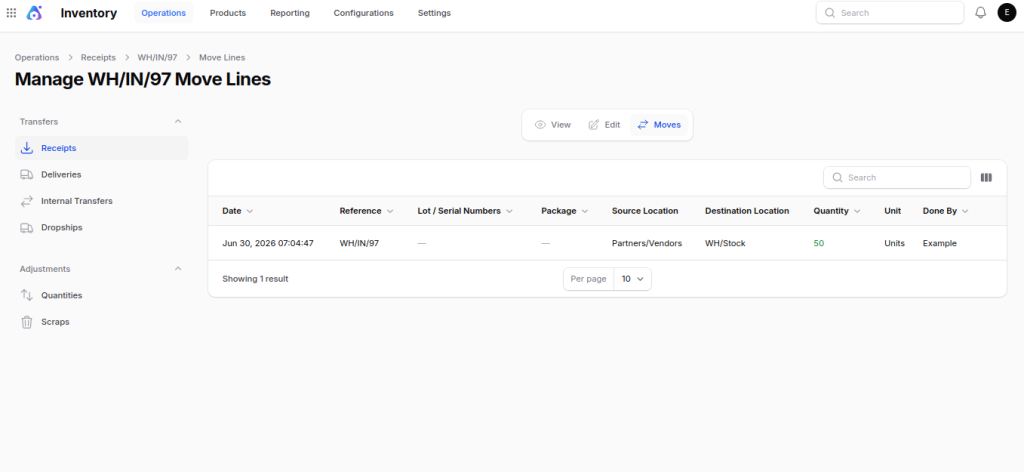
When you buy 50 laptops, checking the receipt transfers the items from the Vendor’s place to the receiving area of your warehouse (WH/Stock).
Stock Movement: Partners/Vendors → WH/Stock

2. View Location
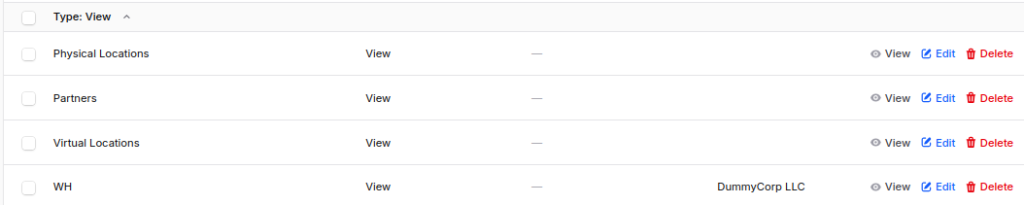
A View location arranges similar warehouse locations into a structured hierarchy.

For example:
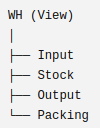
The warehouse has different areas like Input, Stock, Packing, and Output, which helps in managing it better without actually keeping any inventory.
Stock Movement: No stock movement

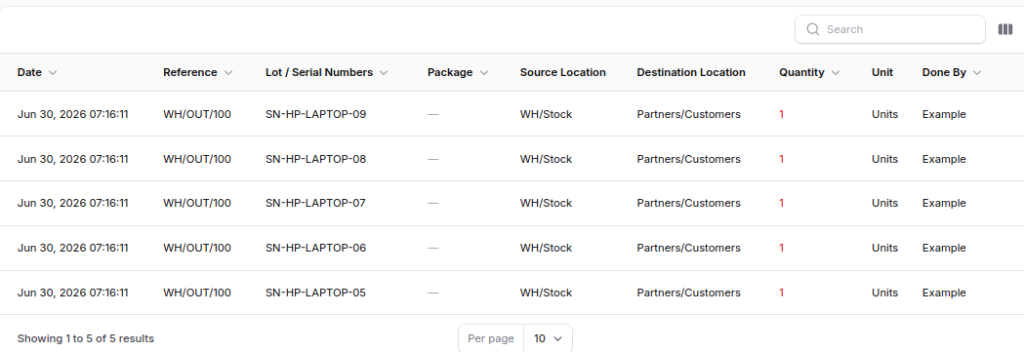
3. Customer Location
The Customer location is used when delivering products to customers.


For example:
Once 5 laptops are shipped, it updates the record to show the transfer from WH/Stock to the Customer’s location.
Stock Movement: WH/Stock → Partners/Customers

4. Internal Location
An internal location is a real storage space found within the warehouse.


For example:
Once you get the products in WH/Stock, you put them in the WH/laptop area.
Stock Movement: WH/Stock→ laptop area.


5. Inventory Loss Location
The Inventory Loss location is used during stock adjustments.


For example:
When 2 laptops are found to be missing during a stock check, a transfer is made to move the missing amount from WH/Stock to Inventory Loss.
Stock Movement: WH/Stock → Inventory Loss


6. Transit Location
The Transit location is a place where products are kept for a short time while they are moved from one warehouse to another.


For example:
When 20 laptops are shipped from the WH/Stock to the TW/Stock. They stay in Transit until the TW Warehouse gets them.
Stock Movement: WH/Stock→ Transit →TW/Stock


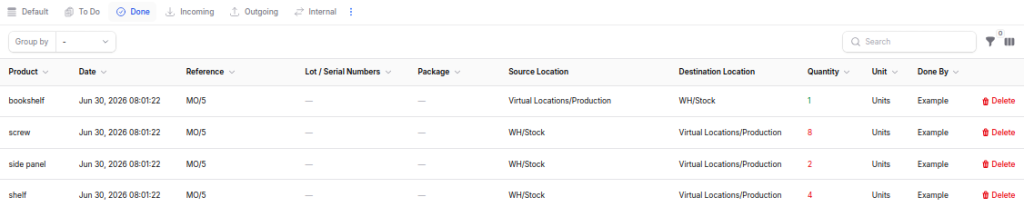
7. Production Location
The Production location is used during manufacturing.


For example:
When making a bookshelf, materials are taken from the warehouse stock, and once the bookshelf is finished, it goes back into inventory.
Stock Movement: WH/Stock → Production → WH/Stock

Final Words
locations help to arrange inventory and make daily tasks easier. They also enhance the accuracy of stock and boost the efficiency of the warehouse.
Every type of location has its own role. So, picking the right location helps with easy inventory movement and improves Inventory Management.
When businesses set up their locations properly, they can handle receipts, transfers, manufacturing, and deliveries with ease.
So, Aureus ERP makes sure that the inventory is correct in all locations.