Storage Categories define rules for storing products in specific warehouse locations. They help manage space and weight limits, ensuring shelves, racks, and bins are used safely and efficiently.
In the Inventory management of Aureus ERP, this prevents overloading and improves product organization by applying clear capacity rules.
Why We Use Storage Categories
So the Storage Categories are used to control how products are stored in the warehouse by applying weight or quantity limits. This ensures shelves, racks, or bins are not overloaded and that items are placed in the right type of storage zone.
Example
Imagine a warehouse shelf with a 100kg capacity:
- If you store fabric rolls, each weighing 20kg, the system allows up to 5 rolls on that shelf.
- Trying to add a 6th roll would exceed the limit, and Aureus ERP restricts it.
So this prevents overloading, protects warehouse infrastructure, and ensures products like fabric which can be bulky and heavy are stored safely and efficiently.
Steps to Create a Storage Category
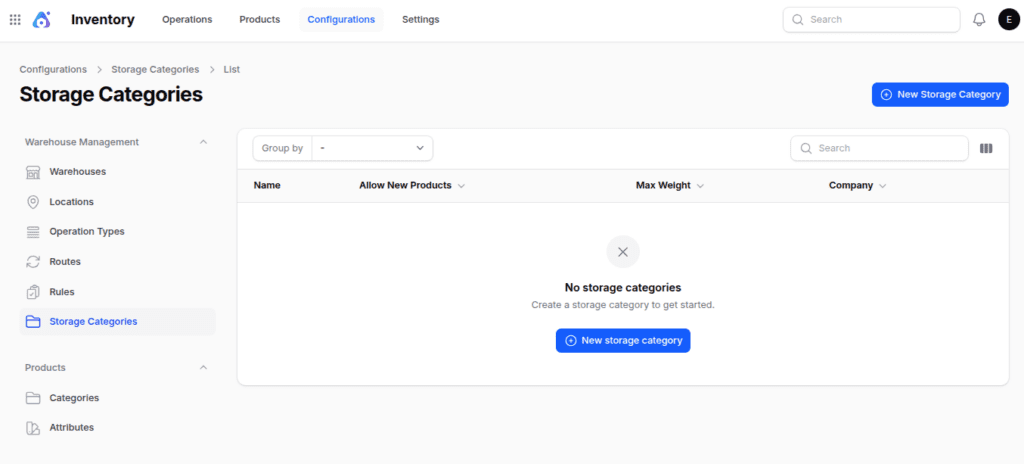
- Navigate to Inventory → Configurations → Warehouse Management → Storage Category as shown below:
NOTE: These storage categories will get visible once you enable them from settings.

- Fill in the following fields:
Basic Information
- Name : Enter a clear category name, e.g., Heavy Goods Zone.
- Max Weight : Define the maximum weight allowed for products in this category.
- Allow New Products : Choose storage rules:
- Mixed → Any products allowed
- Empty → Only empty slots allowed
- Same → Only identical products allowed
- Company : Assign the storage category to a specific company for better warehouse control.

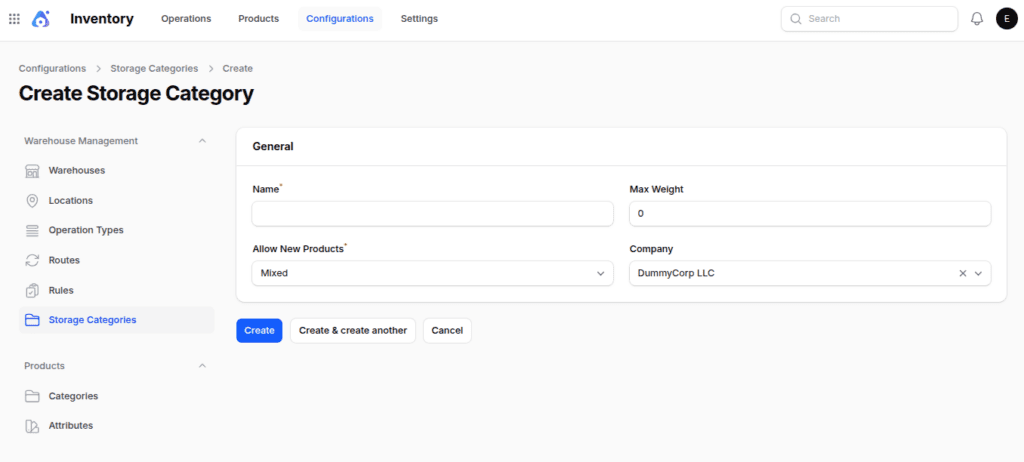
- Action Buttons
- Create: Save storage category
- Create & Create Another: Save and add another
- Cancel: Exit without saving
After creating storage categories
So once created, you are redirected to the storage categories view page, where you can manage capacity details and its location :
1. Capacity by Package : Define storage capacity based on packaging type, ensuring cartons, pallets, or boxes are not overloaded.

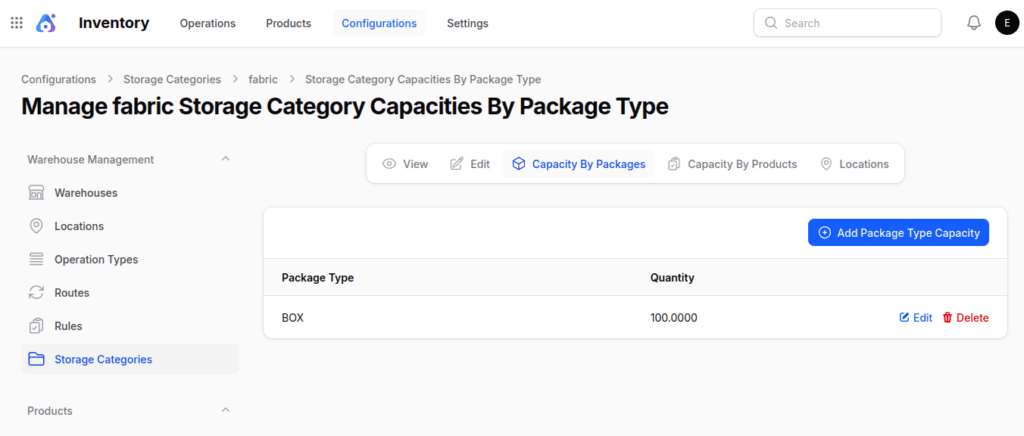
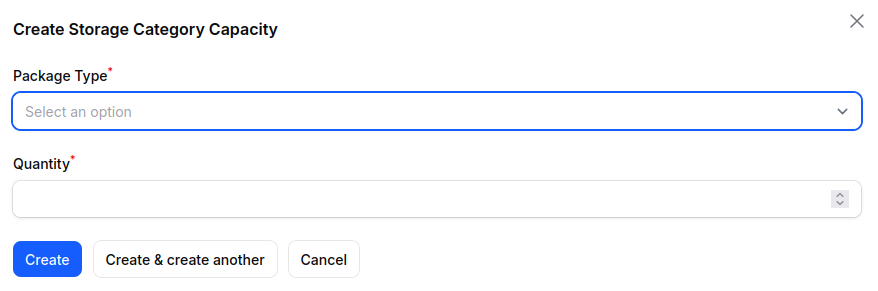
Click the Add Package Type Capacity button. A modal window will appear where you can enter the required details.
So after entering the details, click Create to add the capacity rule to the storage category.

2. Capacity by Product: Set limits by product quantity, helping warehouses control stock levels and avoid exceeding safe thresholds.

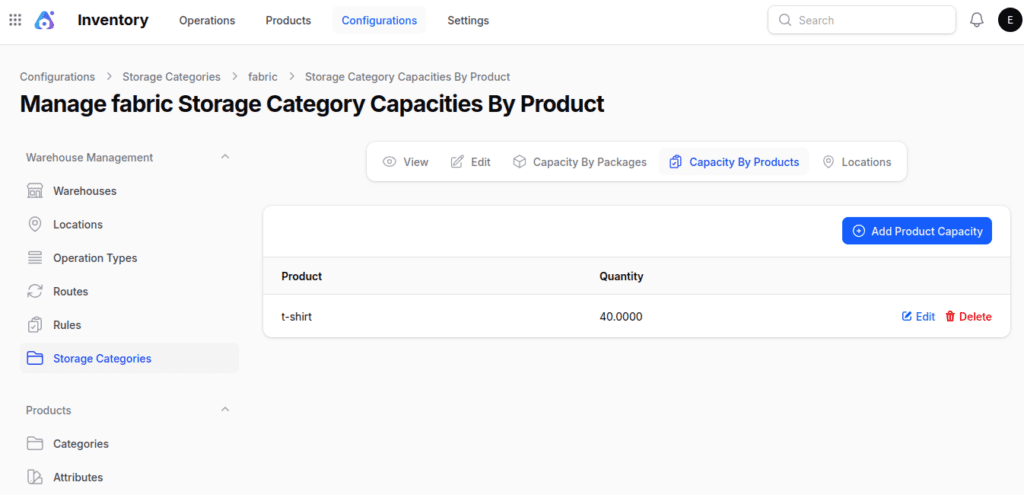
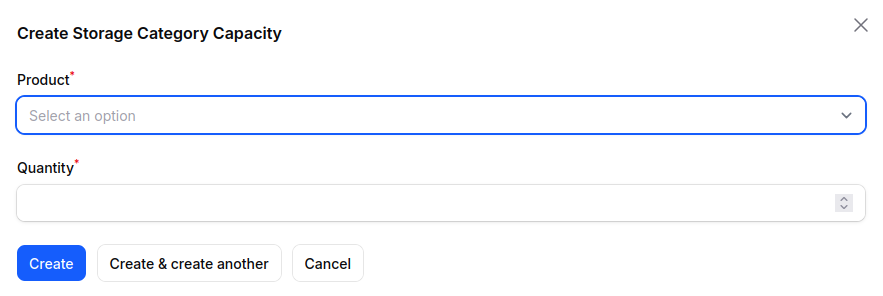
Click the Add Product Capacity button. A modal window will open where you can enter the required details, such as product and quantity.
So after filling in the details, click Create to add the capacity rule to the storage category.

3. Locations: Link storage categories to specific warehouse locations, making it easier to organize, track, and retrieve items.

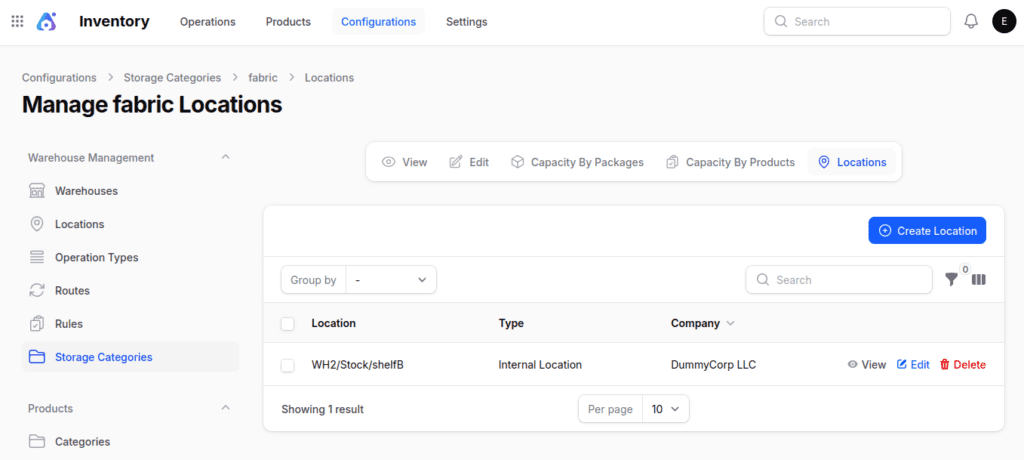
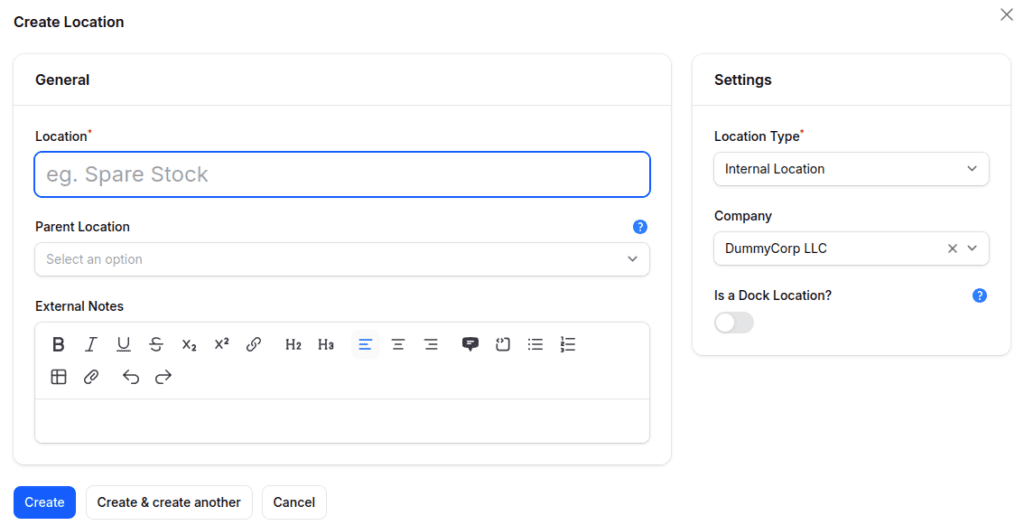
click the Create Location button. A form will appear where you can enter the necessary details, such as the location name, parent location,location type,company.
After entering the required details, click Create to link the location to the selected storage category.

Final Words
These configuration options give warehouses greater control and flexibility.
So by managing capacity at both the package and product level, and linking categories to specific locations, Aureus ERP ensures safe storage, efficient handling, and optimized space utilization.