A Delivery Orders keeps track of the goods that leave your warehouse and go to a customer.
Also, as an important part of Inventory Management, it ensures that the products we sell are shipped correctly and that the stock level is reduced when necessary.
Why It Matters
In particular, deliveries are important because they:
- Ensure accuracy → Make sure the correct products and amounts are sent.
- Update stock →Subtract inventory instantly as items exit the warehouse.
- Provide traceability →Connect straight to sales orders for clear tracking.
If there are no delivery records, warehouses might sell more products than they actually have and end up with wrong inventory numbers.
Methods for Creating Delivery Orders
1. Automatically
When you confirm a Sales Order (SO), the system will automatically make a delivery order that is connected to it.
Steps for Automatic Delivery Creation:
Step 1: Go to the Sales module.
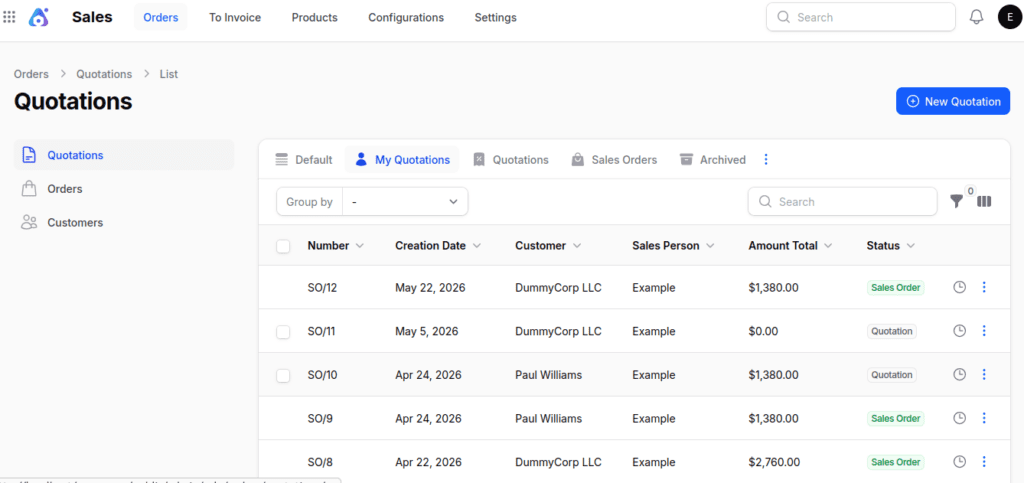
Step 2: Next, create a Quote/Sales Order.
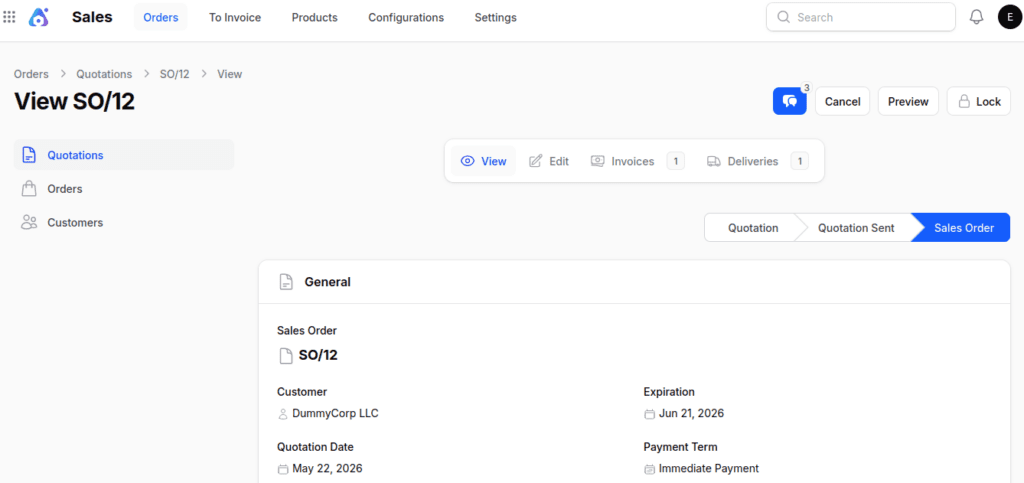
Step 3: After that, confirm the Sales Order, a Deliveries option shows up in the center of the page.
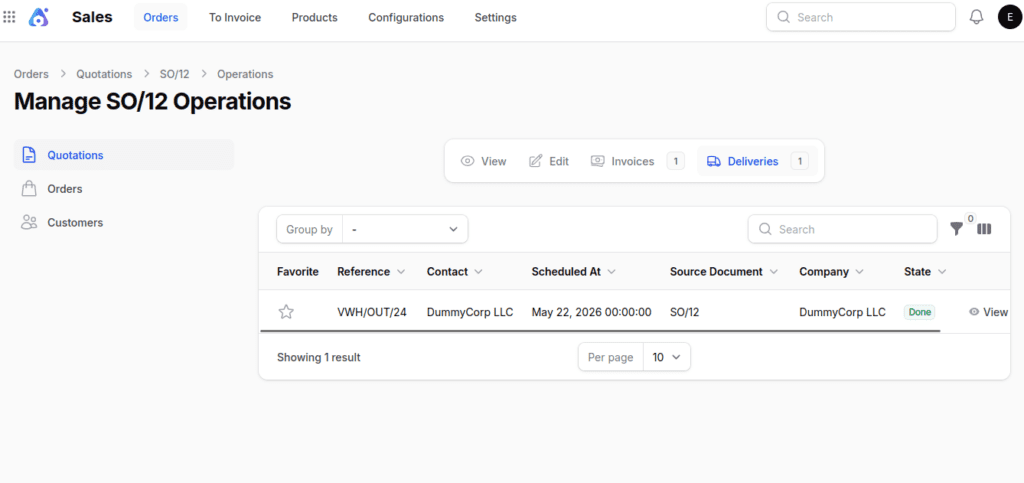
Step 4: Click on the Deliveries option. Then, the system will open the Delivery page and automatically make the delivery record.
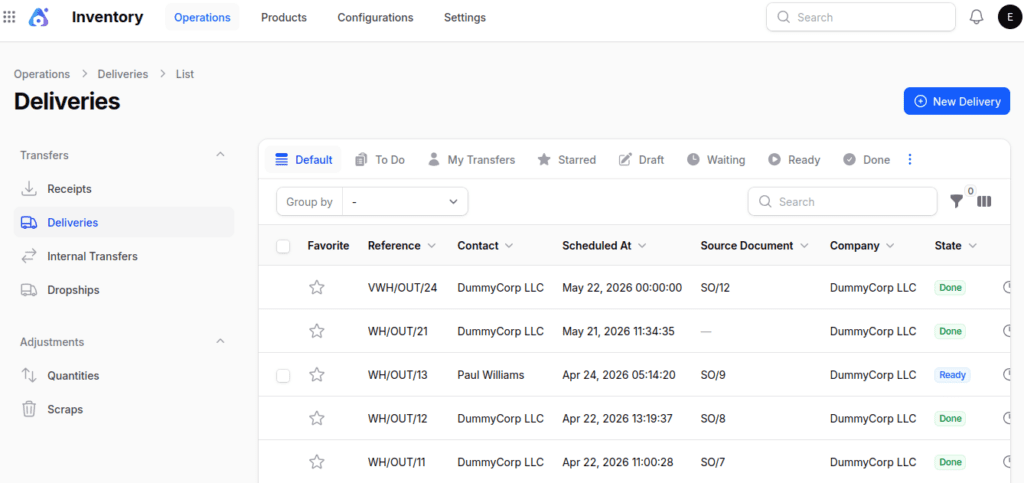
Step 5: You can also find the delivery in the Inventory section by going to Operations → Deliveries.
2. Manually
You can also make delivery orders by hand for one-time shipments or changes that aren’t connected to a Sales Order.
Steps to Create a New Delivery:
Step 1: Navigate to Inventory → Operations → Transfers → Deliveries as shown below:

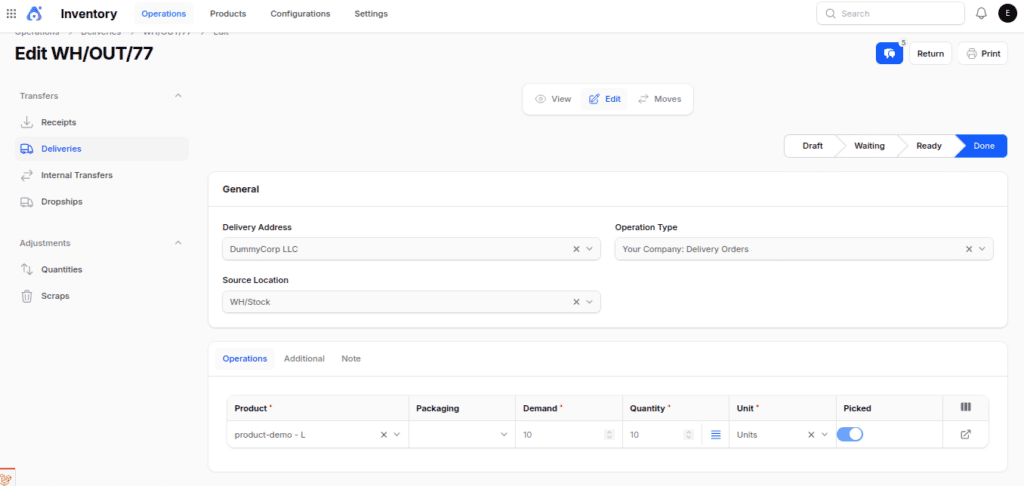
Step 2: Fill in the following details:
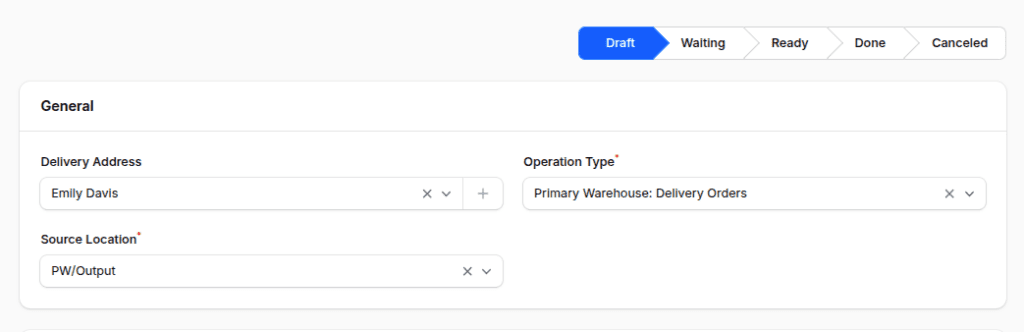
1. General Section
- Delivery Address: Select the customer receiving the goods.
- Operation Type: Preselected (e.g., Primary Warehouse: Delivery Order).
- Destination Location: Preselected warehouse output location (e.g., Primary/Output).
2. Operations Section
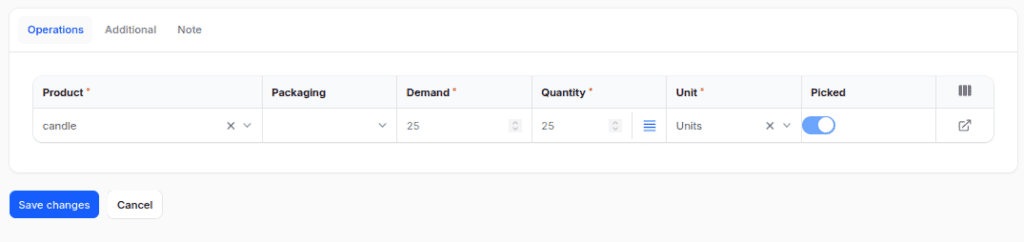
Click Add to Moves, then select:
- Product: Choose the product to deliver.
- Packaging: Specify the packaging used for the shipment.
- Demand: Enter quantity to deliver.
- Unit: Select the unit of measure.
- Picked: Enable to mark products picked for delivery.
3. Additional Section
- Responsible: Person managing the delivery.
- Shipping Policy: Choose whether to ship all items together or as available.
- Scheduled At: Planned delivery date.
- Source Document: Linked sales order or reference.

Step 3: Action Buttons:
- Create – Save and open the delivery record.
- Create & Create Another – Save and create another record.
- Cancel – Exit without saving.
Key Actions Available on the Delivery Page
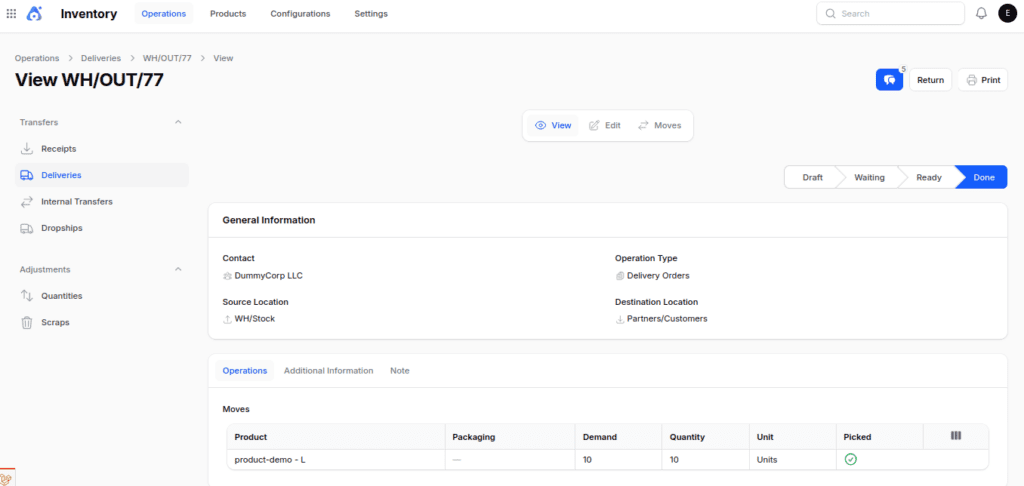
Then, the system shows the Delivery View Page, where you can do these things:
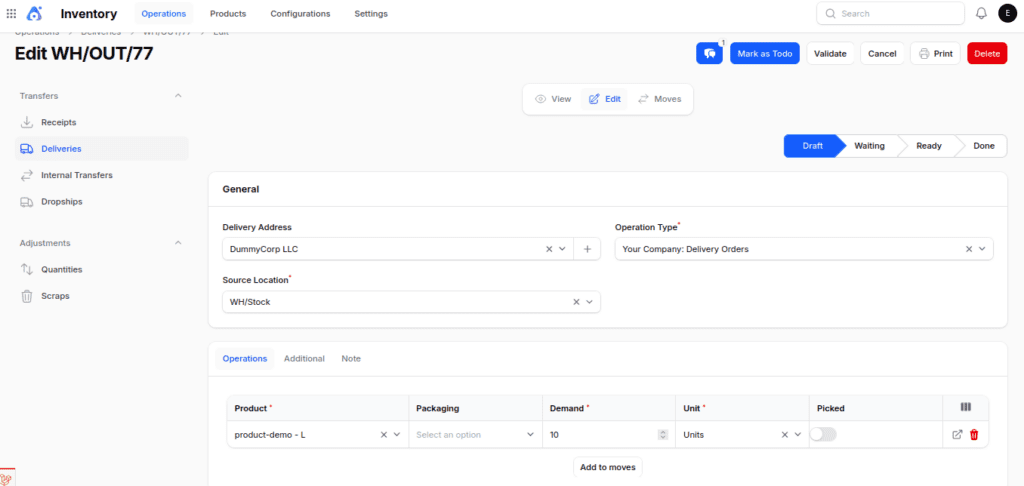
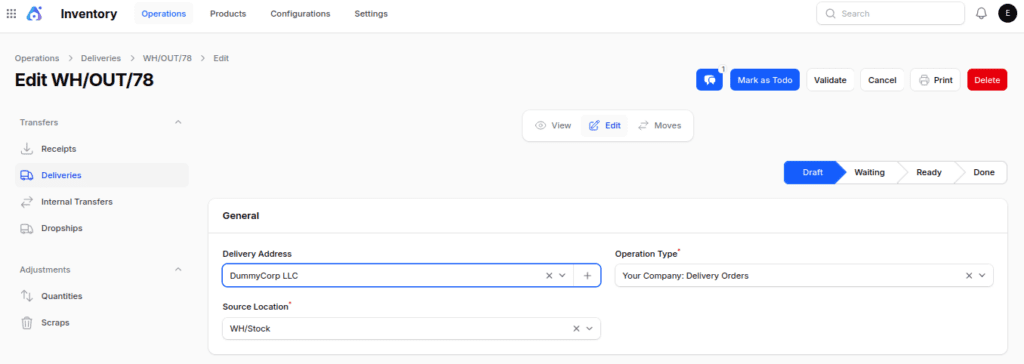
Mark as To Do: Updates the status from Draft to Ready and checks if the stock is available.
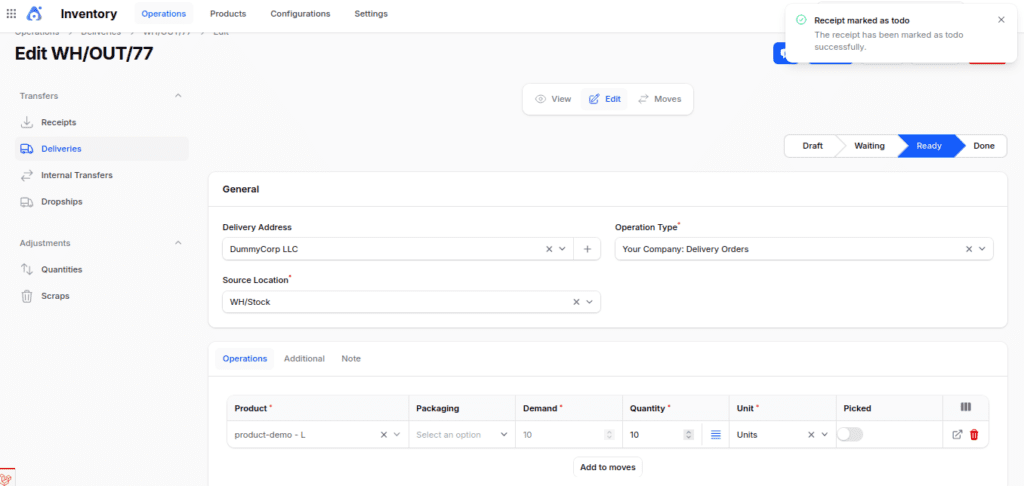
Validate: Verifies that the delivery has been made, lowers the stock amount, and updates the status to Done.
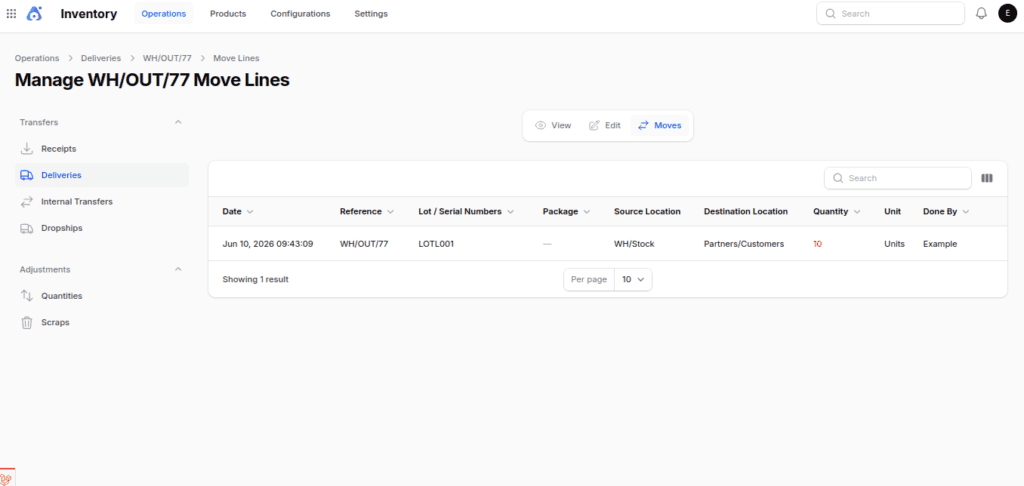
Moves: Check out all the product movements related to the delivery.
Return: Makes a receipt for the delivery.
Cancel / Delete: Please stop or take away the delivery record.
Final Words
Deliveries are the main part of how warehouses send things out. They show how products go from your place to the customers.
Whether they are created automatically from sales orders or done by hand for direct shipments, make sure your inventory shows real-time updates.
As a result, you can maintain accurate stock levels, i improve tracking of transactions, and boost customer happiness with dependable service.


Be the first to comment.