Handling taxes and accounts in various areas can be tricky Aureus ERP makes it easier with Fiscal Positions.
A feature of Accounting Management, that automatically links taxes and accounts depending on where the vendor or customer is located.
This helps follow local tax rules and keeps the accounting correct, all while cutting down on the work you have to do manually.
Follow the steps below to create and manage fiscal positions easily in Aureus ERP.
Step 1: Navigate
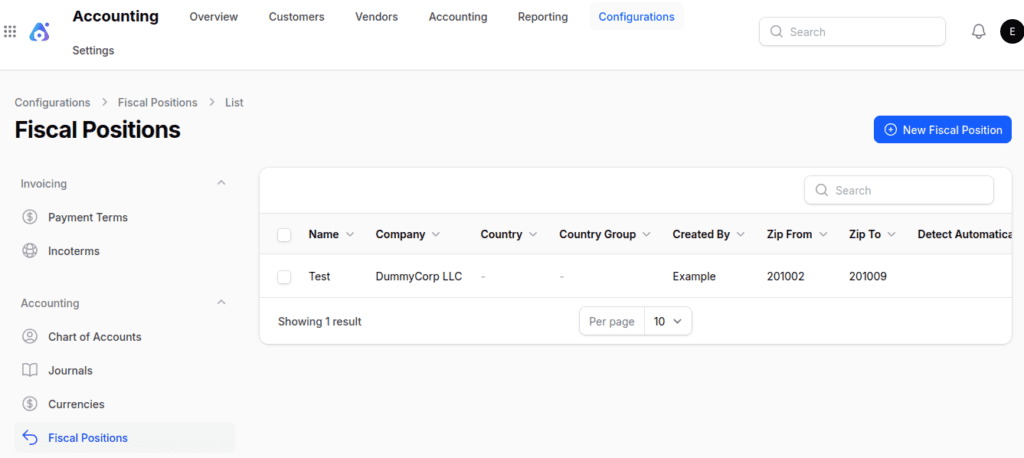
From the main dashboard, go to Accounting → Configuration → Fiscal Position. Here you can view existing fiscal positions or create a new one by clicking New Fiscal Position.
Step 2: Fill Out the Form
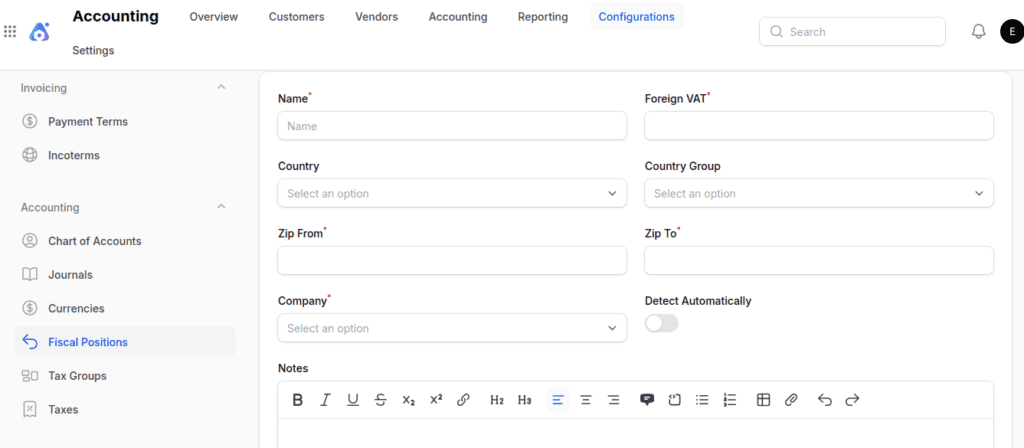
1. General Information
- Name → Identifier or label (e.g., “EU VAT Mapping”).
- Foreign VAT → Maps domestic taxes to foreign VAT rates.
- Country → Defines the country where this fiscal position applies.
- Country Group → Group multiple countries under one fiscal position (e.g., EU).
- Zip From / Zip To → Restrict fiscal positions to specific postal code ranges.
- Company → Select the company (multi‑company setups).
- Detect Automatically → Auto‑apply based on customer/vendor location.
- Notes → Add remarks or internal documentation.
2. Tax Mapping
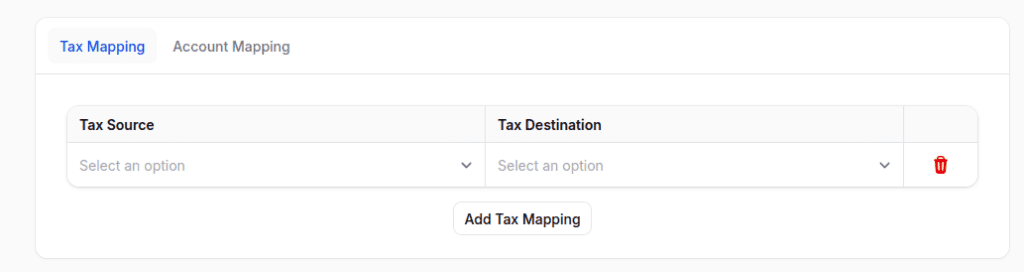
Tax Mapping allows you to replace one tax with another when a fiscal position is applied.
- Tax Source → The original/default tax (e.g., 18% GST, 20% VAT).
- Tax Destination → The replacement tax (e.g., Zero‑Rated Export Tax).
Note: You can add multiple tax mappings using the Add Tax Mapping button.
3. Account Mapping
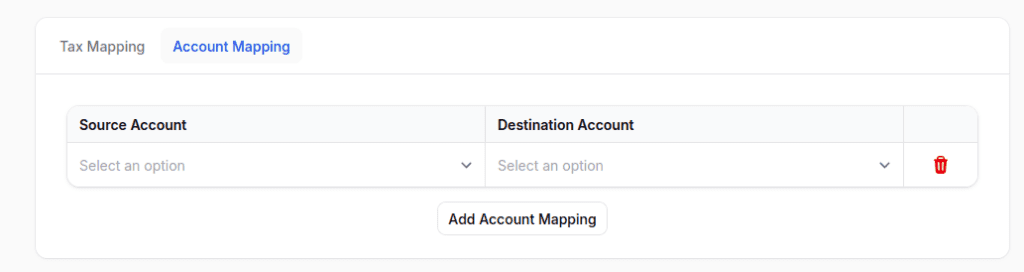
Account Mapping redirects accounting entries from one account to another when a fiscal position is applied.
- Source Account → The default account (e.g., Domestic Sales Revenue).
- Destination Account → The new account (e.g., Export Sales Revenue).
Note: You can add multiple account mappings using the Add Account Mapping button.
Step 3: Save Fiscal Position
Click Create to save. The fiscal position will now appear on the Fiscal Position page.

Where Fiscal Positions Are Used
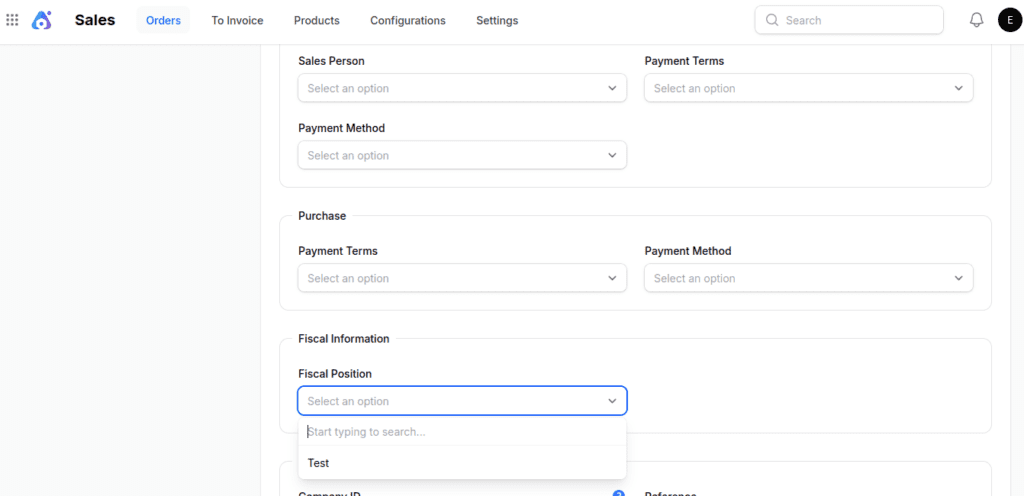
Fiscal positions are important when dealing with customers in the Sales plugin.
For example, when you set up a new customer, you can add a fiscal position by hand and choose the correct one based on where they are or any special rules.
Final Words
Fiscal Positions in Aureus ERP are not just a technical setting they serve as a strong tool for making sure taxes are followed, reports are accurate, and international operations run smoothly.
By setting up tax and account mappings the right way, companies can prevent mistakes, save time, and keep everything clear in all transactions.


Be the first to comment.