In this guide, we will show you how to track product variants by lot in Aureus ERP for accurate stock management and batch-wise visibility.
The inventory management module supports this process by giving users clear control over product data and batch records.
Lot tracking is useful when products arrive in multiple batches. By assigning unique lot numbers to each batch, you can easily identify the stock’s origin and, consequently, manage inventory more efficiently.
With this feature, you can easily monitor quantities per batch, check storage locations, and maintain proper stock levels, thereby reducing errors and keeping your inventory organized.
Aureus ERP’s user-friendly workflow makes it easy to create products, assign lots, and validate stock, helping teams manage inventory smoothly and efficiently.
First, let’s understand what a lot is:
A lot is a batch of items that arrive together at the same time.
For example, if you receive 50 units of the same product in one delivery, all those units form one lot.
Tracking lots helps you:
- Identify which batch each item belongs to
- Know how much quantity is available in each batch
- Track the movement history of the stock
- Check the exact location where each lot is stored
Let’s go through the steps to enable lot tracking:
Navigation Path:
Inventory → Products → New Product
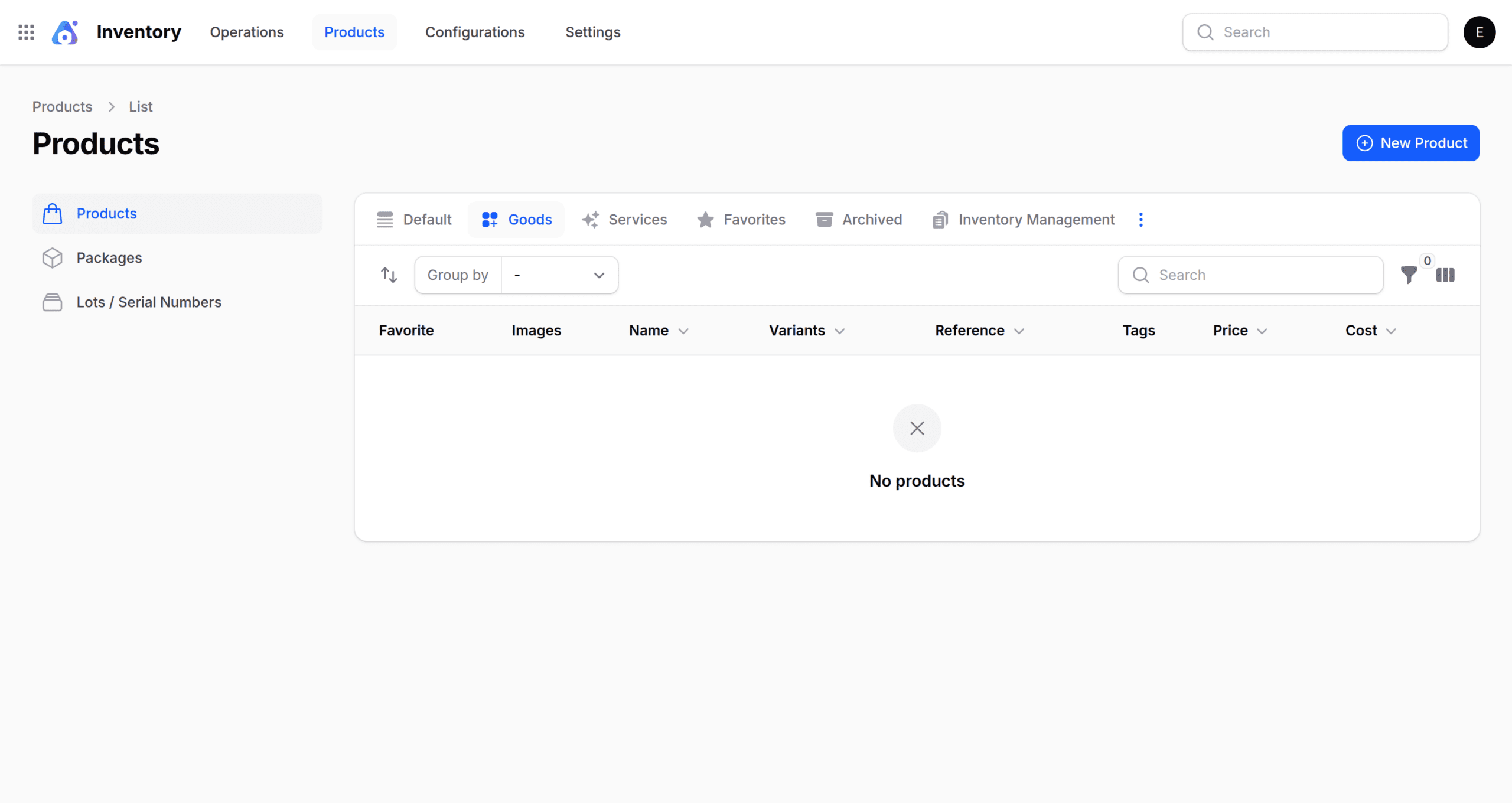
Create Product
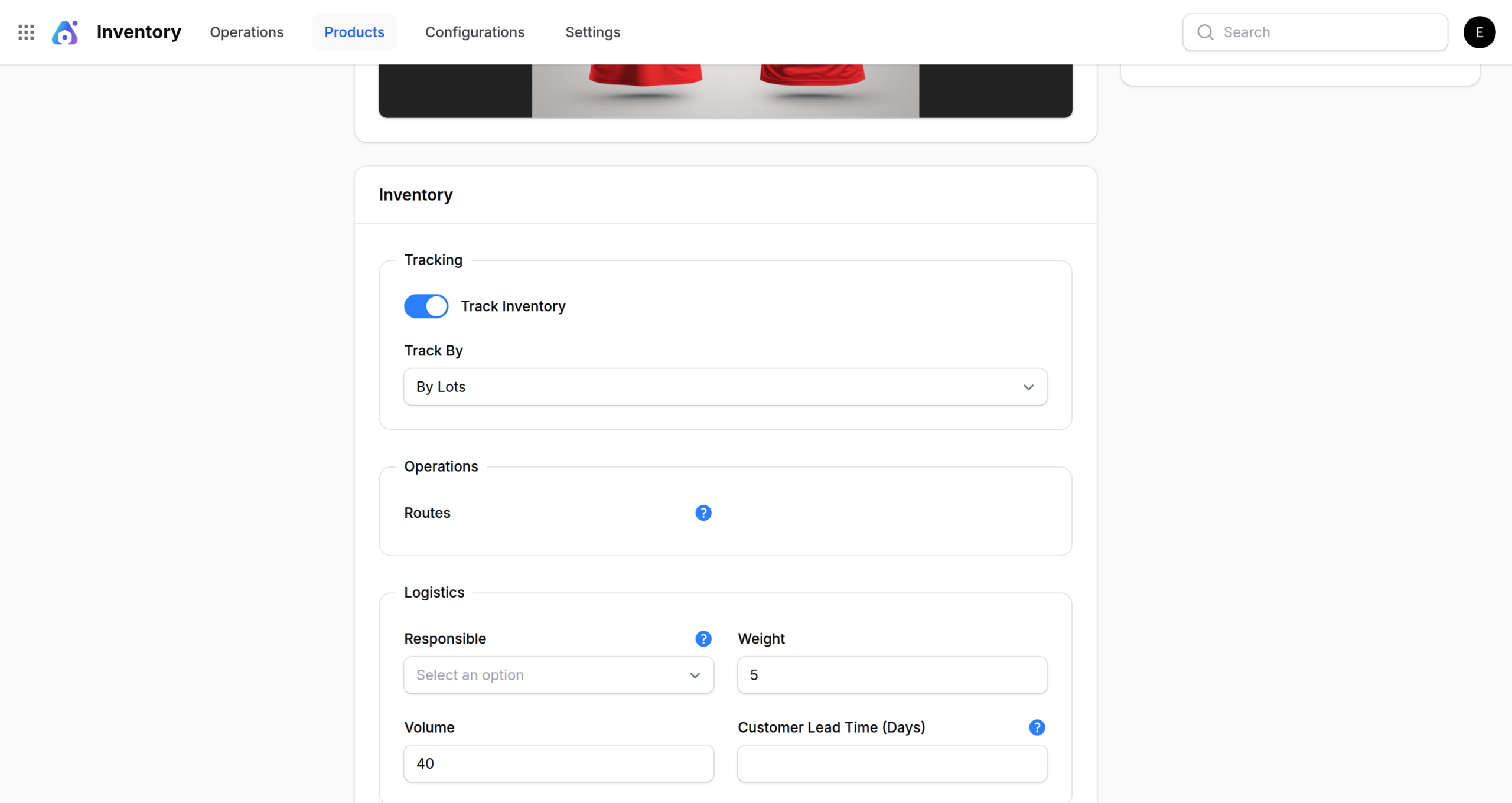
Fill in the required product details:
- Name: Unique title used to identify the product.
- Images: Photos used to visually represent the product.
- Description: Short details that describe the product clearly.
- Tags: Keywords added to the group, and search the product easily.
- Setting: Additional configuration for product behavior.
- Types: Defines product category based on nature.
→ Goods: Physical items stored and shipped.
→ Services: Non-physical offerings like support or labor.
→ Reference: Internal code used to recognize the product.
→ Company: Company linked with the product record.
→ Barcode: Scannable code for quick product access.
→ Category: Group used to classify the product. - Pricing: These are the price details used for selling the product as well as for internal costing.
→ Price: This shows the amount at which you sell the product.
→ Cost: Amount spent to produce or purchase the product.
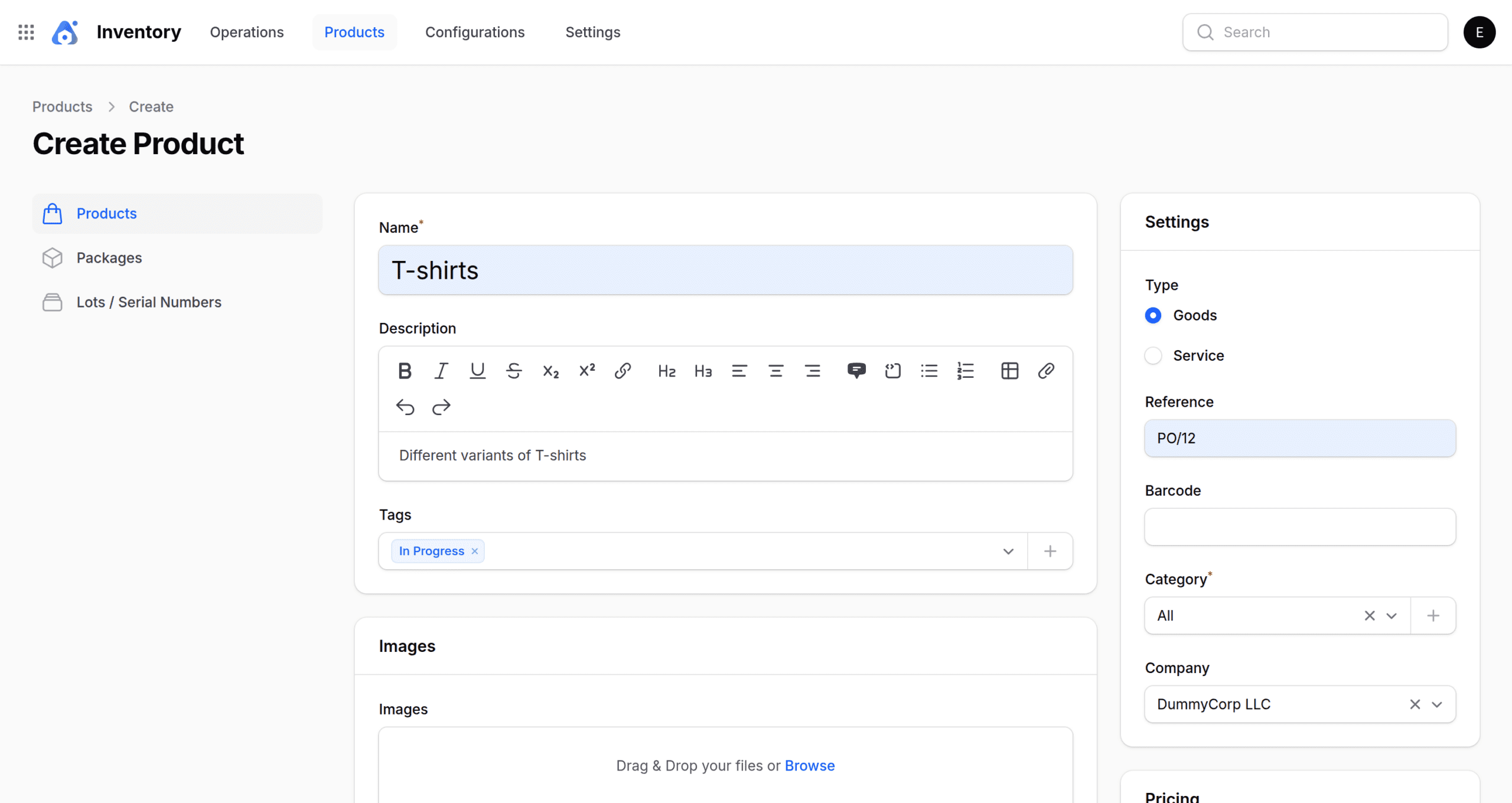
- Tracking: A Method used to monitor stock movement and product history.
→ By Lots: Tracks the product in batches using unique lot numbers.
- Operation: This explains how the system handles the product during processing.
→ Routes: Path or workflow followed by the product.
- Logistics: These include details related to the product’s movement, storage, and delivery.
→ Responsible: Person or team managing logistics.
→ Weight: Physical weight used for shipping and handling.
→ Volume: Space occupied by the product.
→ Customer Lead Time (Days): This indicates the number of days required to deliver the product to the customer.
Click on Create to save the details.
Receipt
A receipt records the arrival of products into inventory from a supplier or production process.
- Go to the Operations→ Receipts → New Receipt
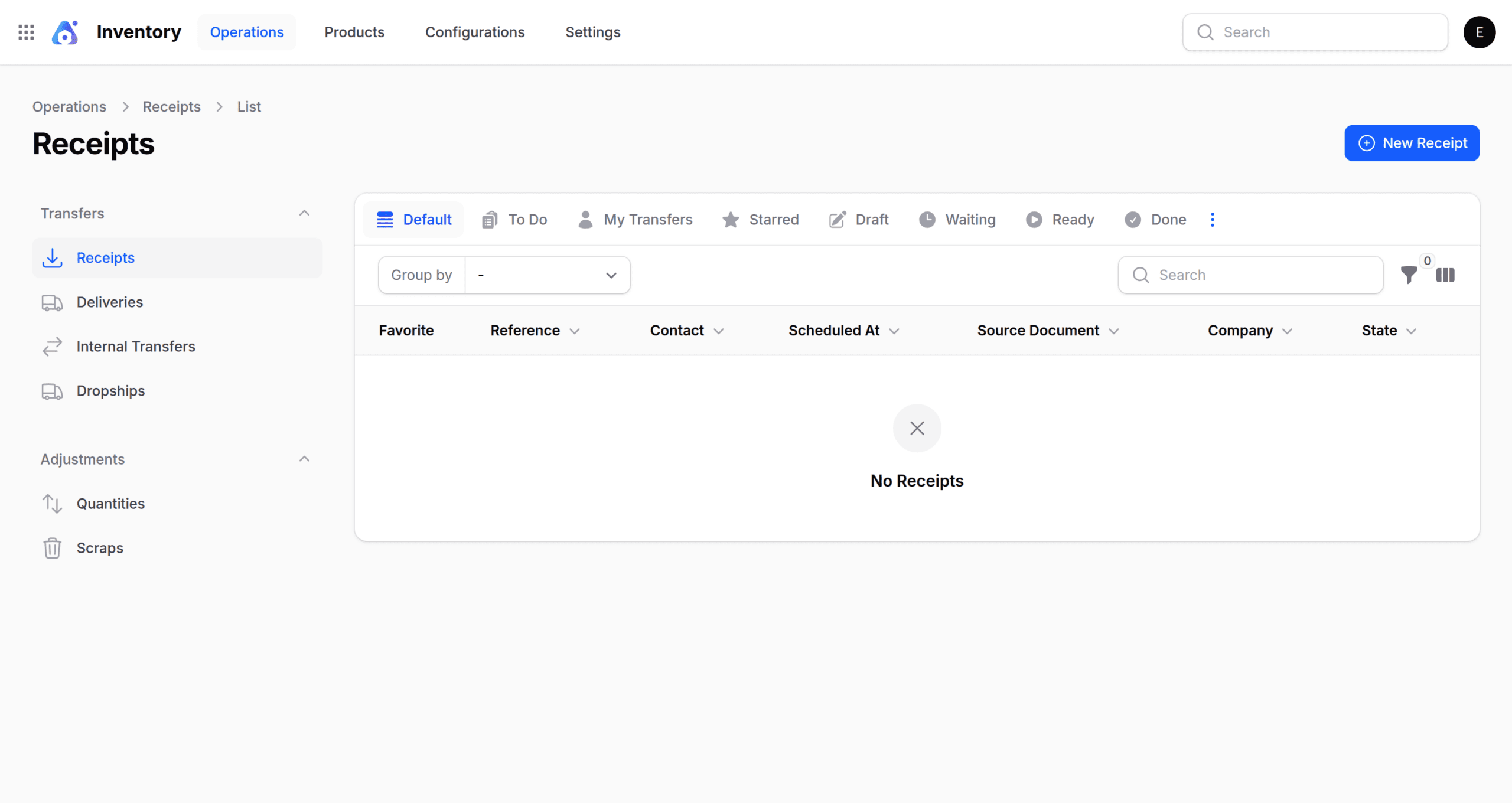
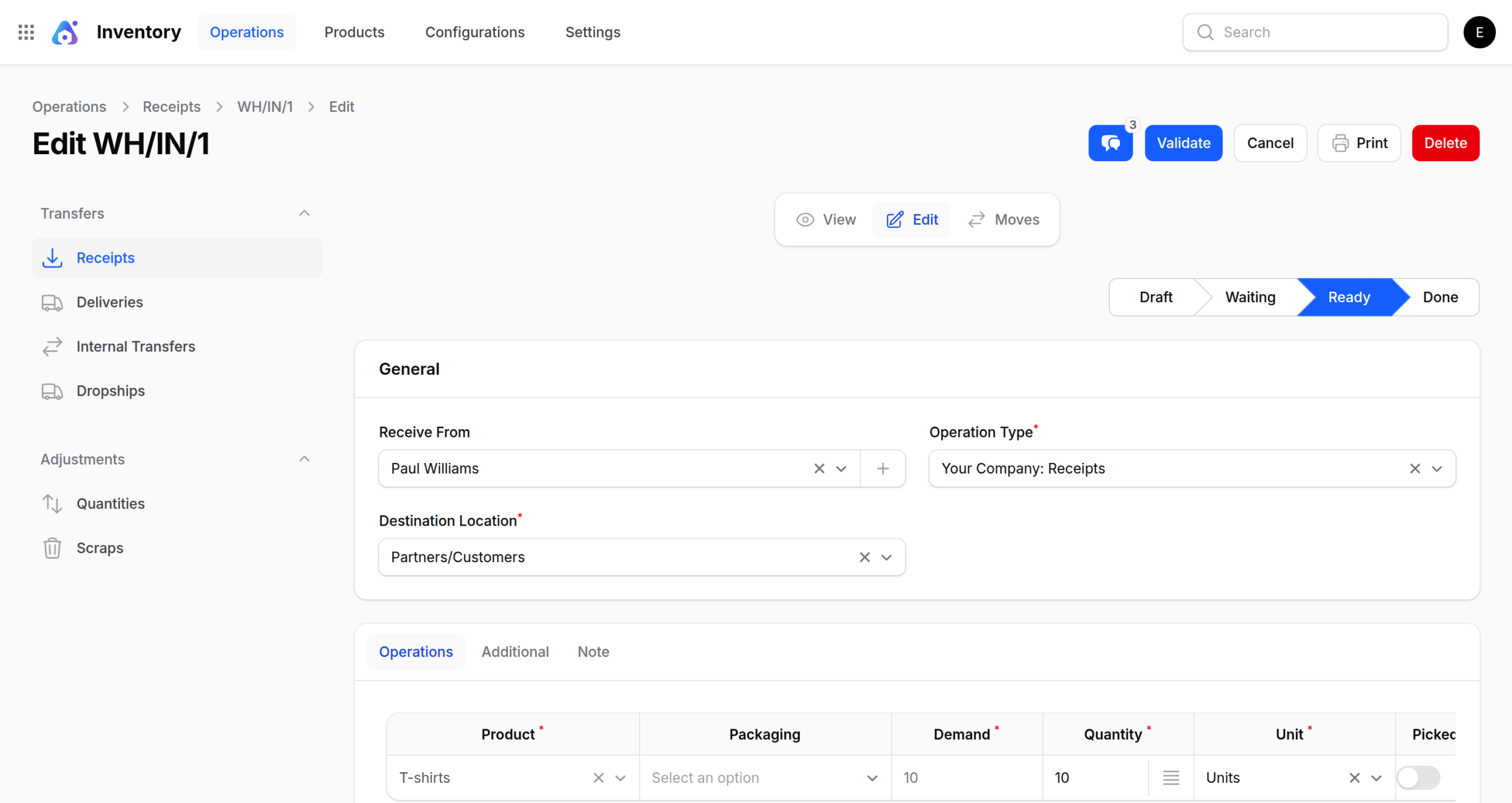
The receipt section includes five status categories:
- Draft: Receipt is created but not confirmed yet.
- Waiting: Receipt is pending action or approval before processing.
- Ready: Receipt is approved and prepared for processing.
- Done: Receipt is fully processed and completed.
- Canceled: Receipt is stopped, and no further action will be taken.
General Details:
- Receive From: Indicates the source from which the incoming goods are received.
- Destination Location: This shows where the items will be stored or delivered.
- Operation Type: This defines the type of receipt process you are performing.
- OperationSection: Section that holds all product-related receipt actions.
→ Product Details: List of items, quantities, and units included in the receipt. - Additional: Extra information related to handling and tracking.
→ Responsible: Person managing or overseeing the receipt.
→ Source Document: Reference document linked to the receipt.
→ Scheduled At: Planned date and time for receiving the items.
Note: Any important remarks or instructions.
Click on Create to save the details.
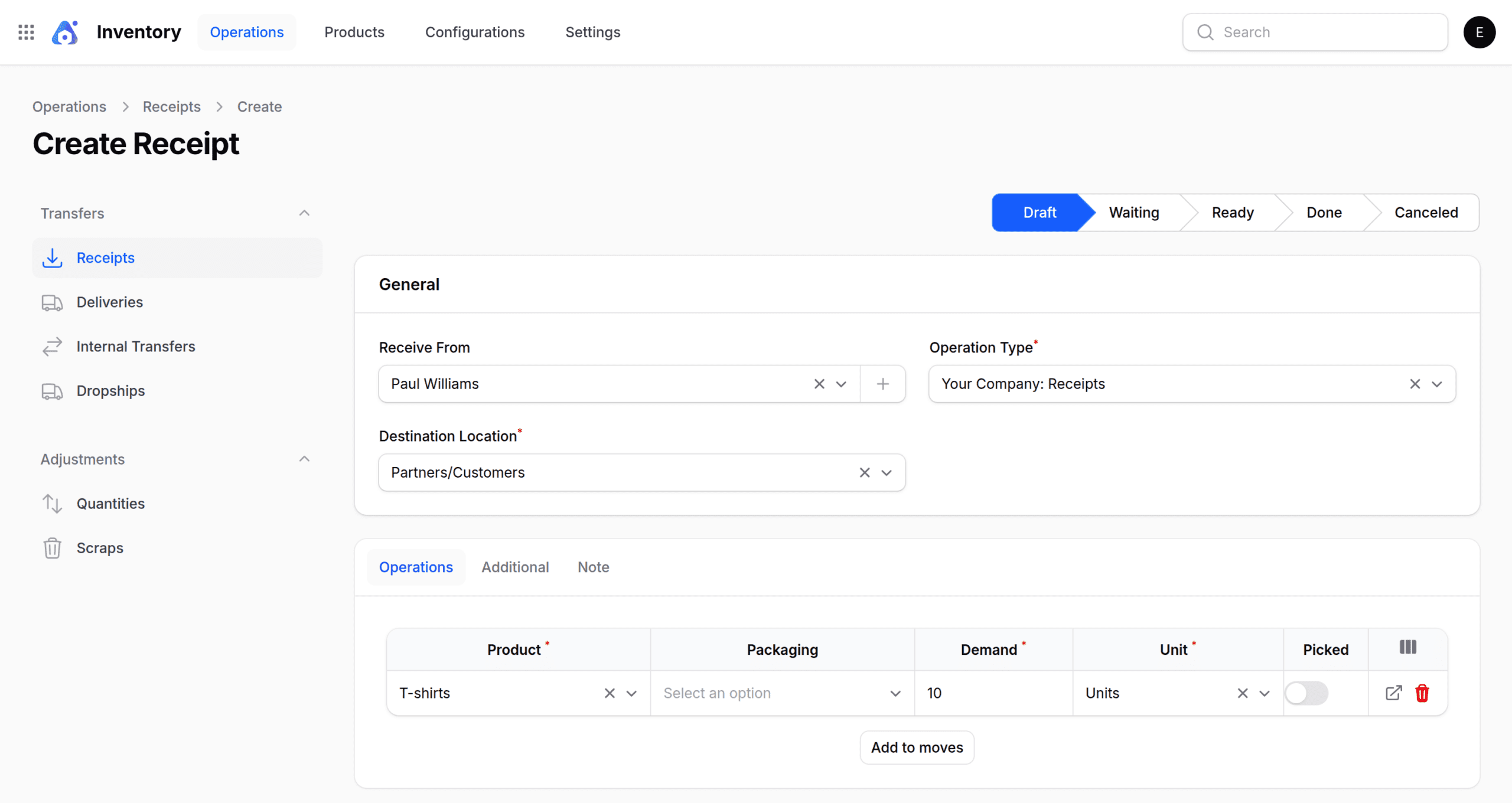
After adding the details, enter the required Name and click Create to save them.
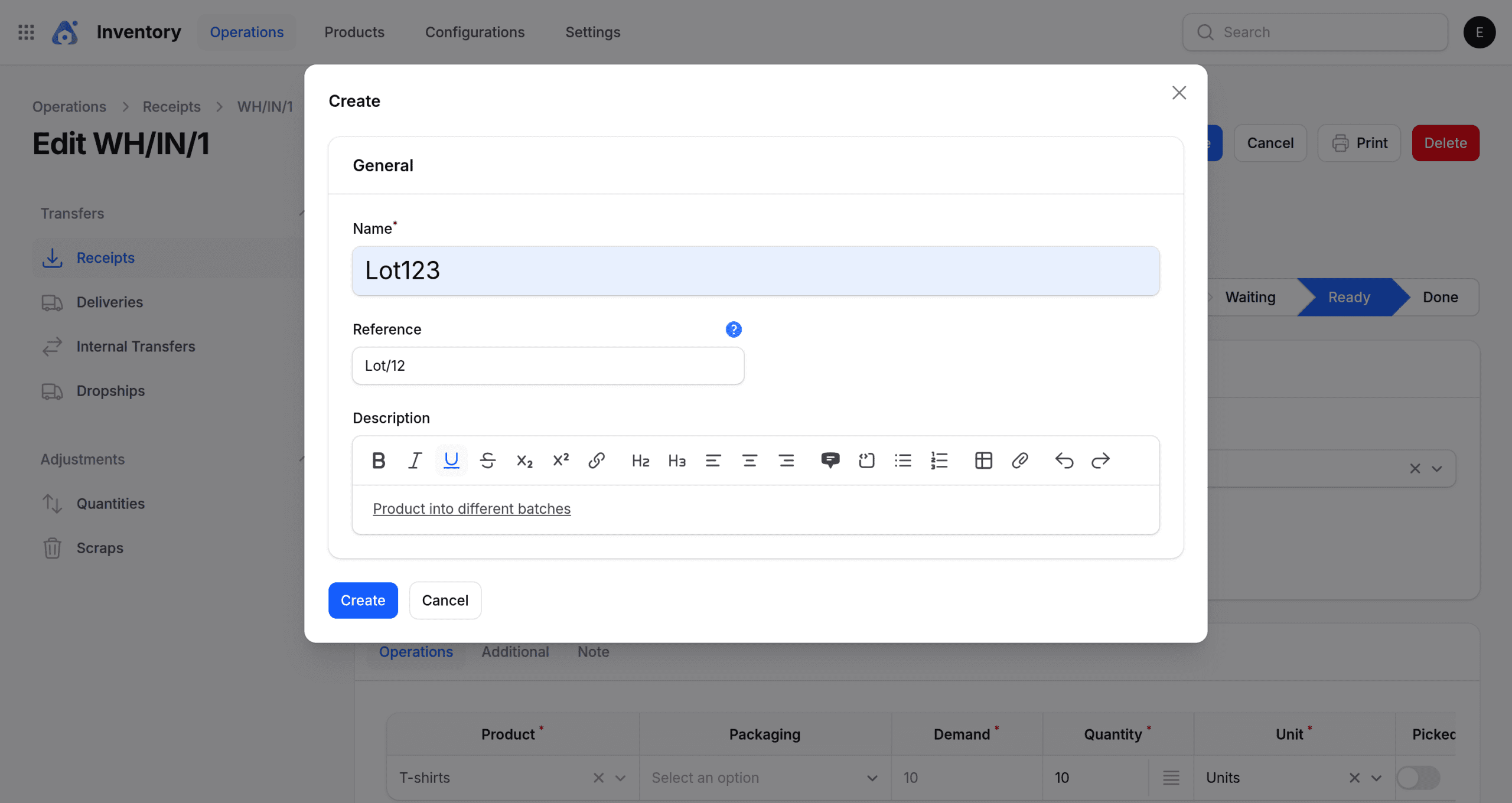
Once you’ve entered the general details, you can then set the Lot/Serial Number and the required quantity, followed by adding the storage location and destination package in the Manage Stock Moves section.
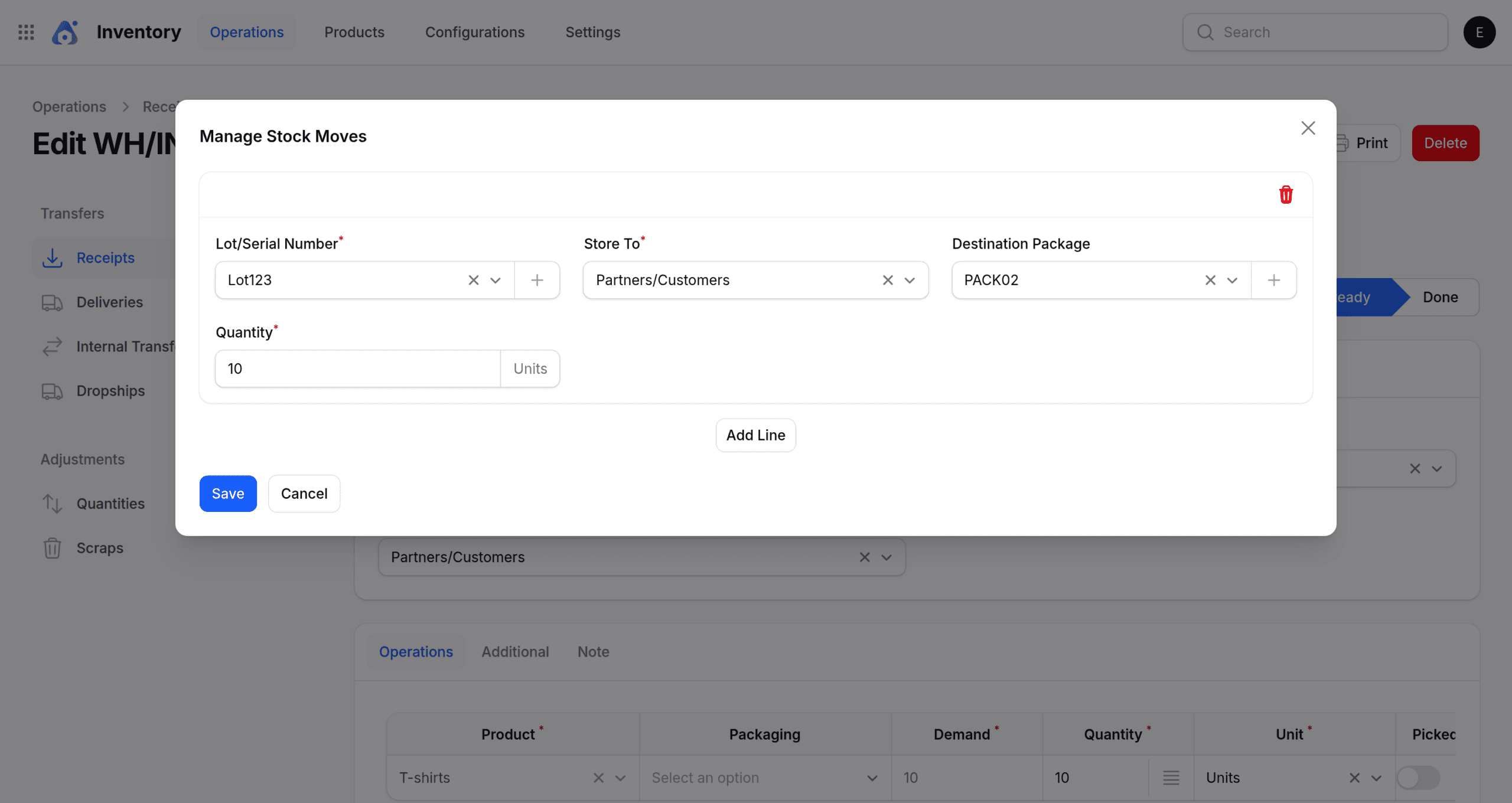
Click to save the details.
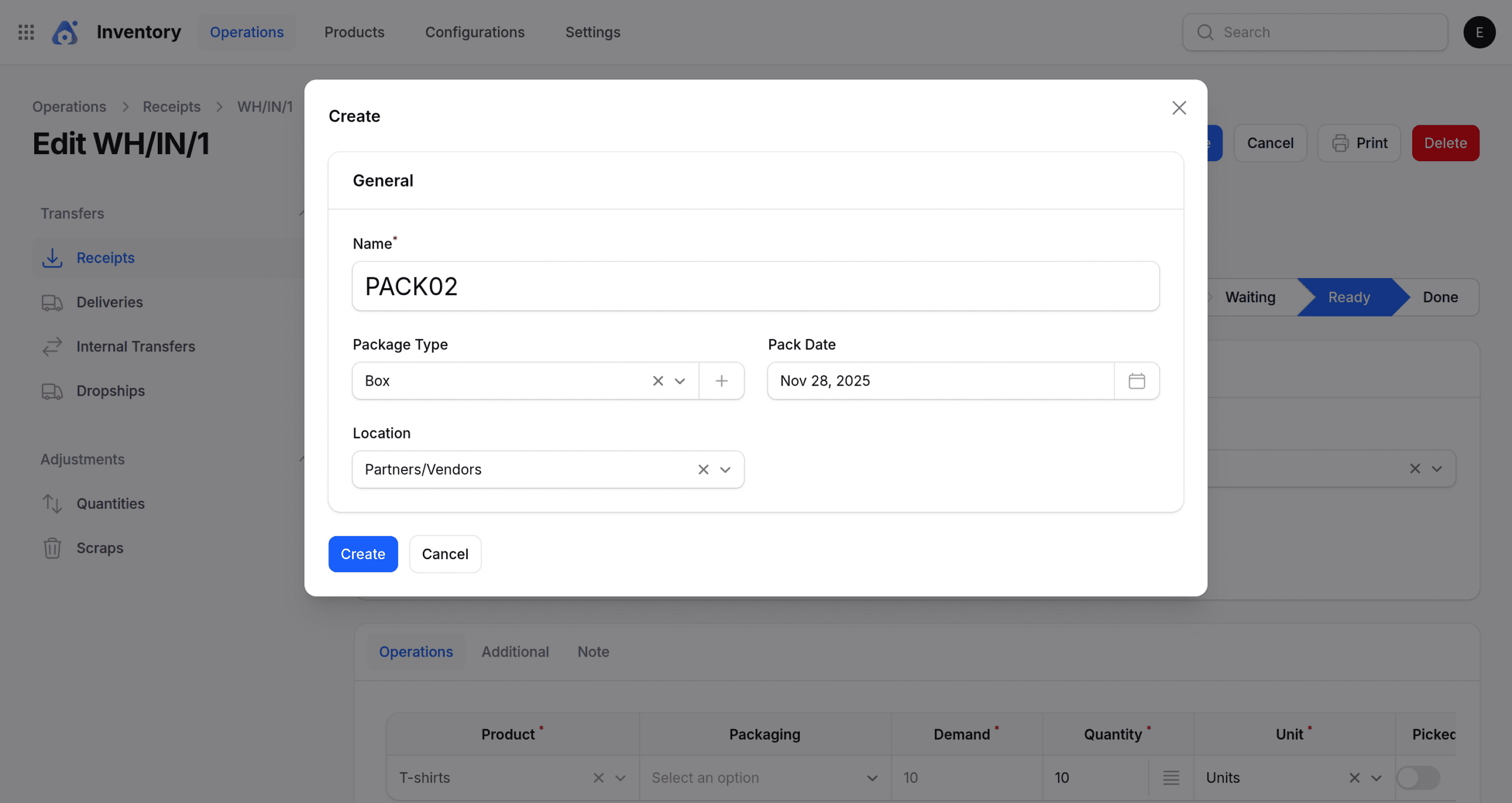
Create a destination package by clicking the plus icon and then entering the required details.
After linking the lot number to the product, you can then proceed to validate the receipt.
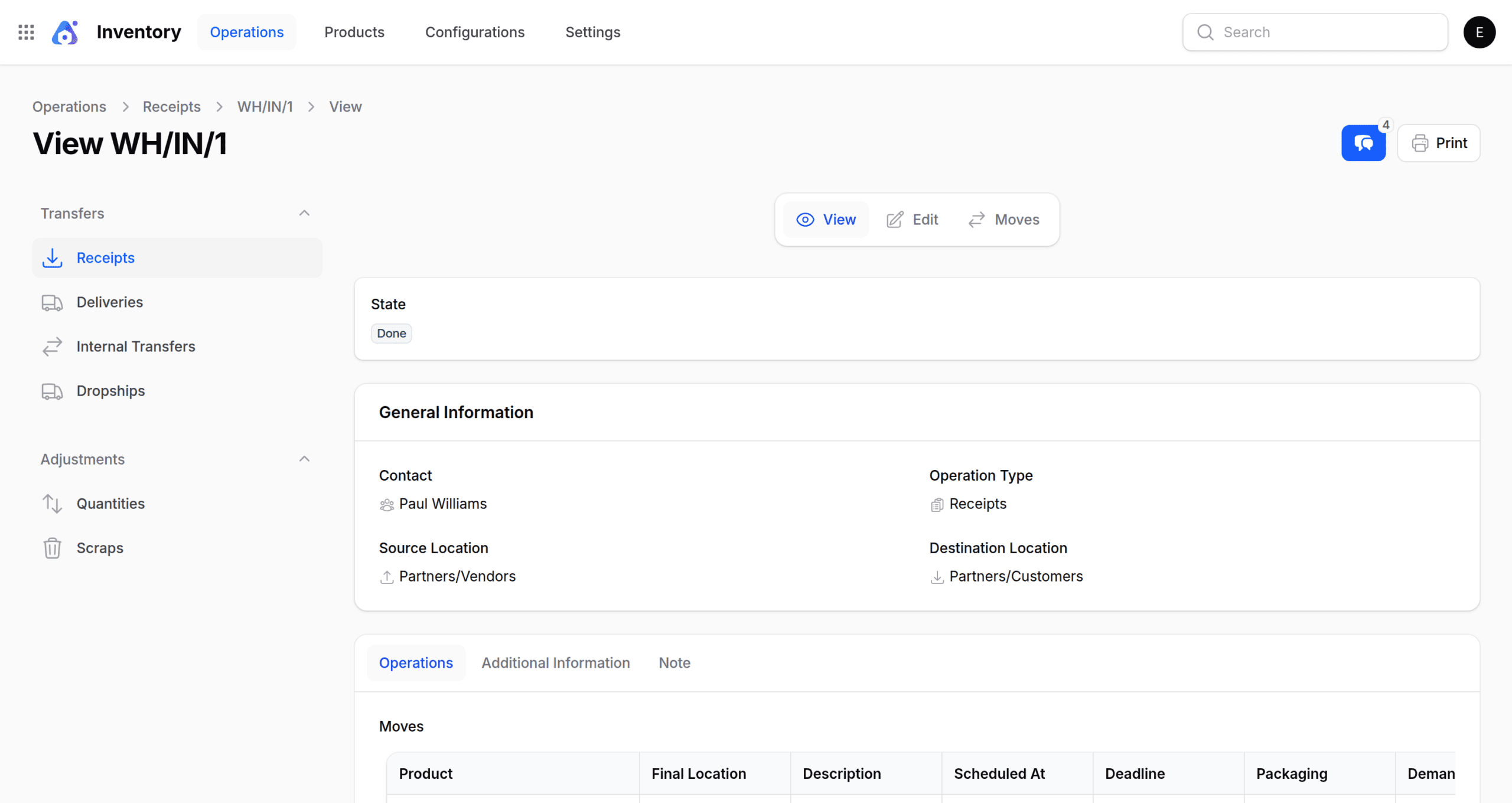
When the receipt is validated, the status will show as Done on the View page.
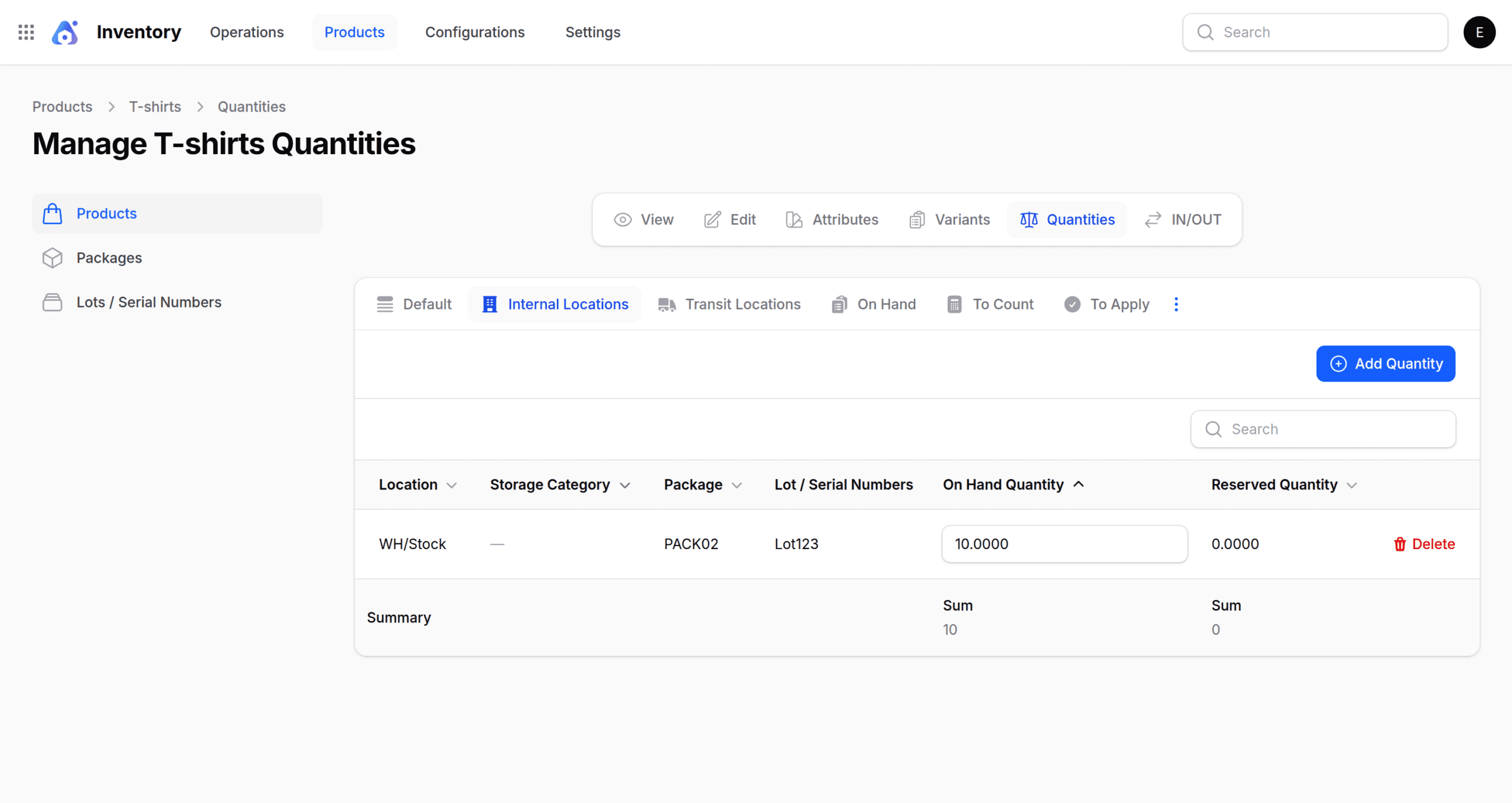
Once the validation is complete, the quantity automatically updates.
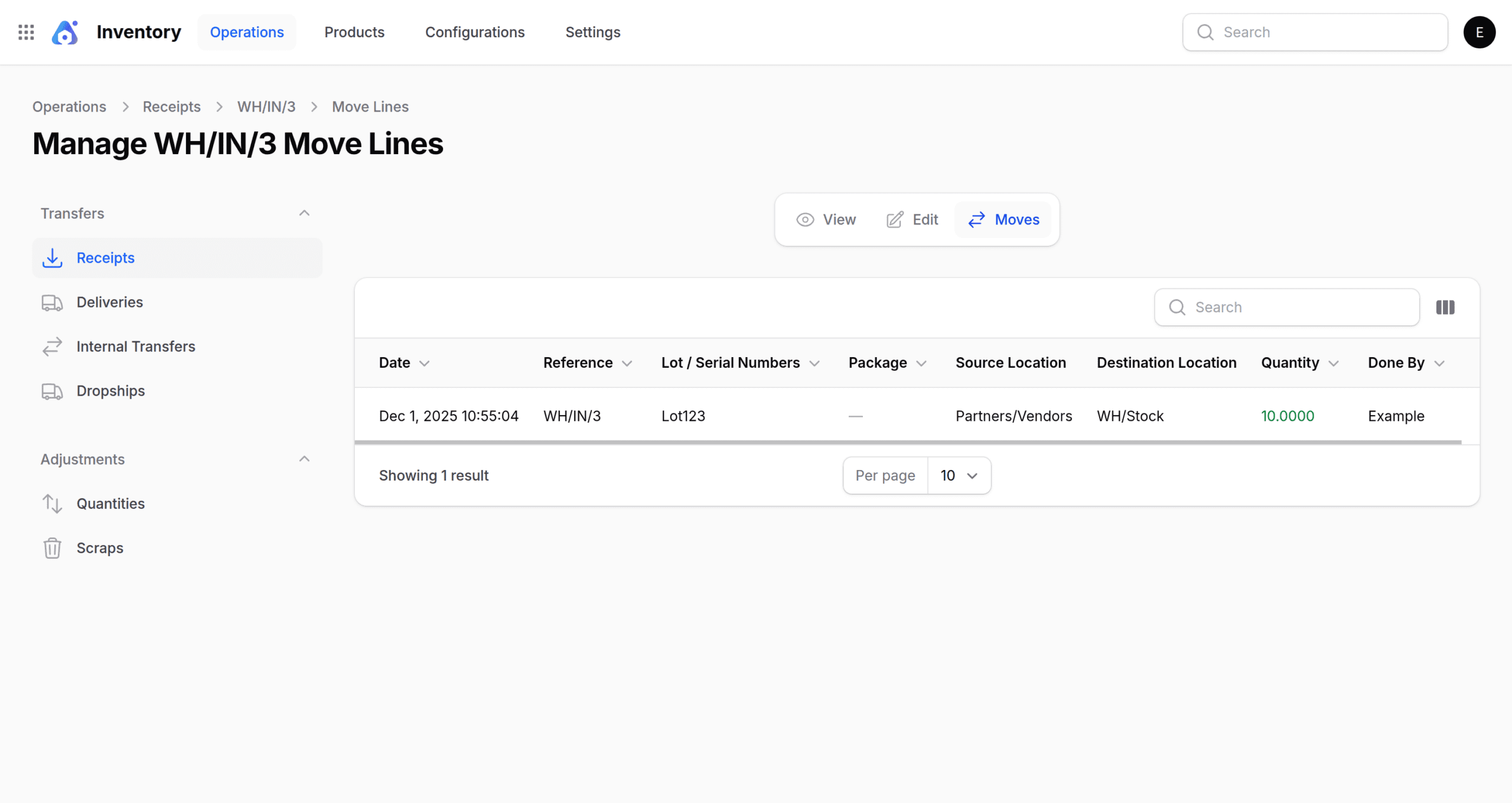
In the Receipt section, you can then navigate to Moves to check the source and destination locations, along with other essential details.
Additionally, you can also create a lot directly.
- Go to the Product, click on New Lots/Serial Numbers, and then enter the required details.”
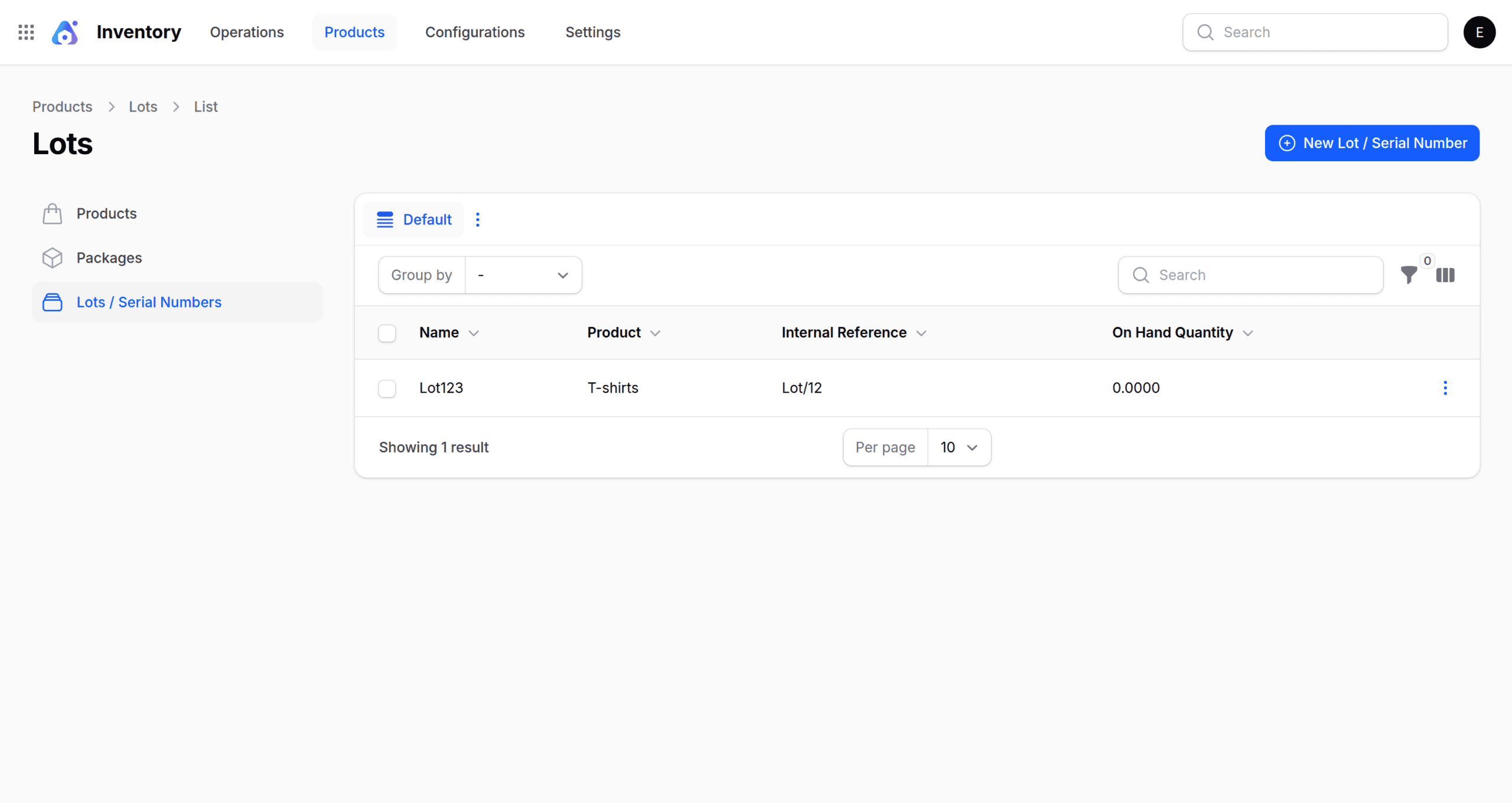
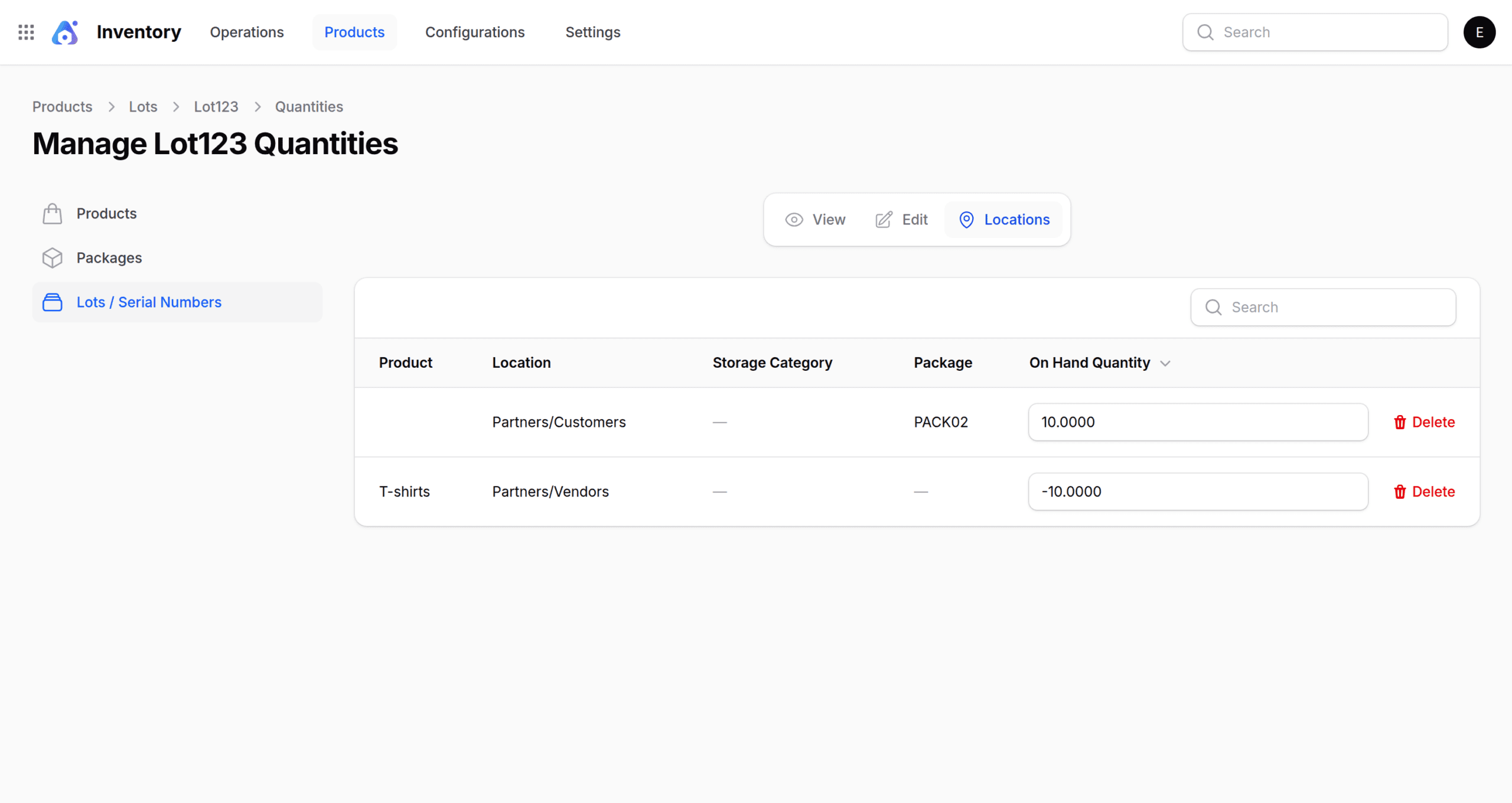
In the Lot/Serial Number section, you can also check the location.
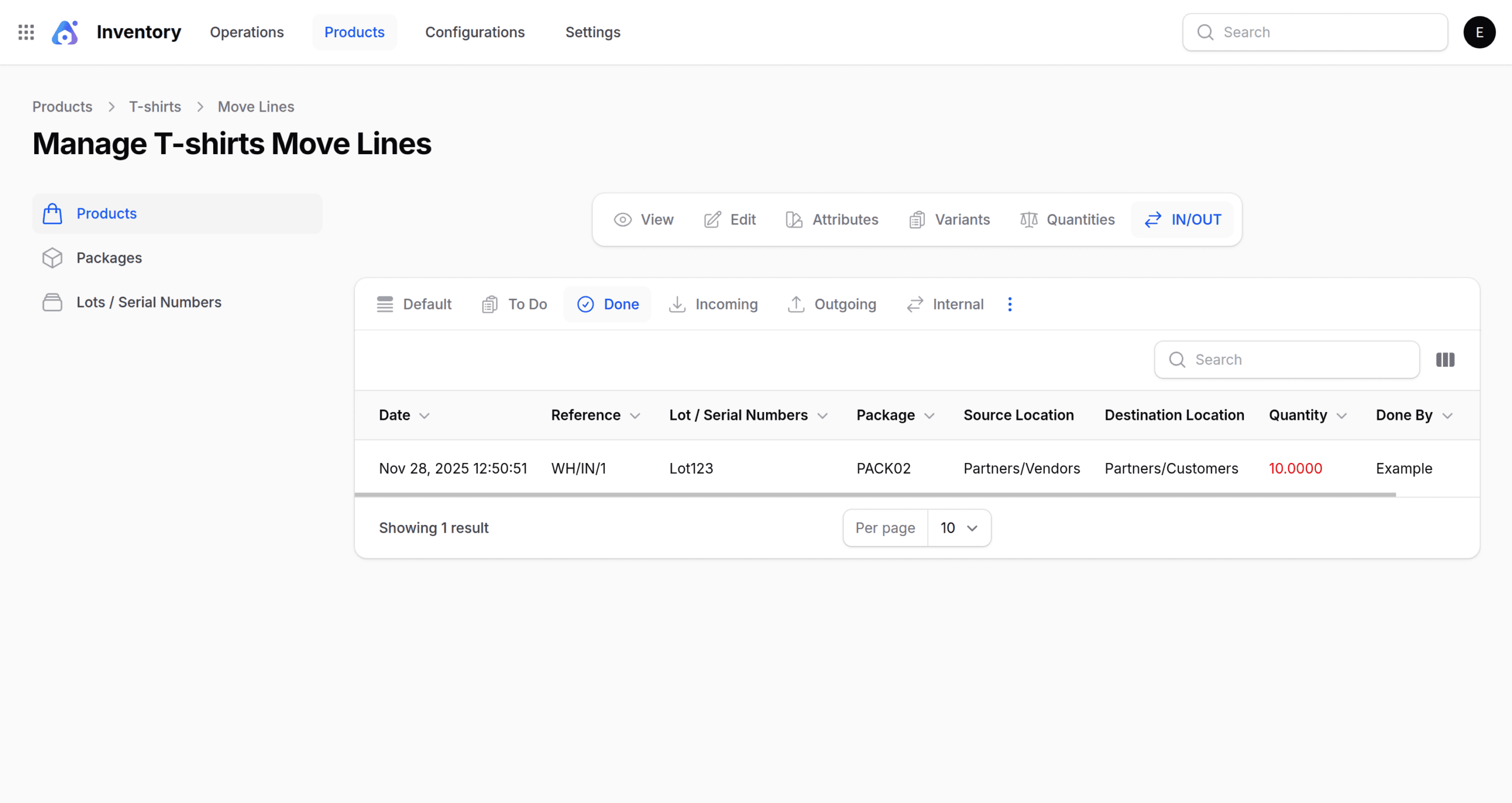
- Go to the Product and click on IN/OUT to view the source location, destination location, quantity, and other relevant details.
Final Thoughts
Overall, tracking product variants by lot in Aureus ERP not only improves batch accuracy but also reduces stock errors and ensures your inventory stays well organized.
Moreover, with its clean and intuitive workflow, this open-source ERP system allows teams to manage products, validate batches, and maintain smooth operations without confusion.
This process also ensures better traceability, helping you track quantities, storage locations, and movement history for each lot.
Overall, it enhances inventory control and supports smarter, more reliable stock decisions.


Be the first to comment.